






Graphic Tablet Shortcut Keys Setup: Boost Your Workflow by 3x India
- Configuring express keys is the single highest-impact setup step for improving drawing workflow speed on any XPPen tablet.
- Application-specific profiles in the XPPen driver allow different key assignments for Photoshop, Krita, Illustrator, and any other application, switching automatically when you change focus.
- Seven core shortcuts (undo, step back, brush size up/down, brush hardness up/down, eraser, save) cover 85 percent of all actions in a Photoshop retouching session.
- Canvas rotation is the most underused express key assignment for illustrators; assigning it to two keys reduces wrist strain significantly during long drawing sessions.
- The physical dial on Deco Pro tablets is most effective when assigned to brush size in Photoshop or timeline scrubbing in Toon Boom and Adobe Animate.
- Pen barrel buttons can be assigned to undo, right-click, or eraser mode for single-hand access to the most common micro-corrections during drawing.
- Why Express Keys Matter for Your Drawing Speed
- How to Configure Express Keys in the XPPen Driver
- Best Express Key Setup for Adobe Photoshop
- Best Express Key Setup for Krita
- Best Express Key Setup for Clip Studio Paint
- Best Express Key Setup for Adobe Illustrator
- Setting Up Application-Specific Profiles
- Configuring the Physical Dial on Deco Pro Models
- Pen Barrel Button Configuration
- Who Benefits Most from Express Key Optimisation?
- Related Reading
- Frequently Asked Questions
Express keys are the feature that separates productive tablet workflows from inefficient ones, yet they are the most consistently overlooked setup step among Indian tablet users. The majority of XPPen tablet owners who contact support reporting that their workflow "feels slow" or "doesn't feel as natural as expected" are using their tablets with all express keys at the default (often blank) settings, reaching for the keyboard constantly, and breaking their drawing rhythm with every undo and brush size change. Configuring express keys correctly takes under fifteen minutes and produces an immediate, measurable improvement to drawing speed and session comfort. This guide provides the exact configuration sets used by professional Indian digital artists in Photoshop, Krita, Clip Studio Paint, and Illustrator. Check which XPPen tablets include express keys before reading, as the number of keys varies by model.
Last reviewed: May 2026
1. Why Express Keys Matter for Your Drawing Speed
Every time you lift your drawing hand from the tablet to reach the keyboard, you break the physical and mental state of active drawing. The hand-to-keyboard movement takes 0.5 to 1.5 seconds depending on the shortcut and your keyboard's position. An illustrator performing 200 undo operations in a two-hour session without express keys spends between 100 and 300 seconds (1.5 to 5 minutes) purely on keyboard travel. Across a working week, this is 7 to 25 minutes of dead time that express keys eliminate entirely.
Beyond time, the physical disruption of keyboard reaching is significant. It resets the drawing grip, temporarily moves focus from the screen to the keyboard, and interrupts the proprioceptive feedback loop that keeps drawing in a creative flow state. Artists who configure express keys consistently describe the resulting workflow not just as faster but as more immersive and less fatiguing.
Productivity research: Research on digital tool proficiency published by the American Psychological Association on workflow interruption found that each task interruption requiring physical tool switching (including hand movement away from the primary input device) adds cognitive reloading overhead of 1 to 3 seconds beyond the physical movement time. For creative professionals performing hundreds of repetitive micro-tasks per session, reducing tool-switching interruptions is one of the highest-return workflow investments available.
2. How to Configure Express Keys in the XPPen Driver
Step 1: Open the Driver
On Windows, click the XPPen icon in the system tray (bottom right of the screen). On macOS, click the XPPen icon in the menu bar (top right). The main driver window opens showing the tablet graphic with key assignments displayed on each button.
Step 2: Click a Key to Assign It
Click any key button in the driver interface. A shortcut assignment panel opens. You can type a keyboard shortcut directly (for example, hold Ctrl and press Z to assign Ctrl+Z), or select from the action dropdown for common commands like mouse buttons, scroll wheel, and media controls.
Step 3: Name the Key (Recommended)
After assigning a shortcut, type a label in the Name field. Good labels (like "UNDO" or "BRUSH -") appear on the driver's key diagram, making it easy to remember assignments without reopening the driver.
Step 4: Test and Adjust
Open your drawing application and press each key to confirm the shortcut triggers correctly. If a shortcut does not respond, check whether the application has a conflicting shortcut that overrides the tablet key, or whether the application requires the tablet to be the active input device in its preferences.
Start by assigning only the three shortcuts you use most frequently: undo (Ctrl+Z), decrease brush size ([), and increase brush size (]). Live with these for three days before adding more. This prevents the common mistake of assigning eight keys at once and then being unable to remember which key does what during a drawing session.
3. Best Express Key Setup for Adobe Photoshop
Retouching and Photo Editing Profile (8 Keys)
Key 1: Ctrl+Z — Undo last action. Key 2: Ctrl+Alt+Z — Step back through history (more powerful than undo for multi-step correction). Key 3: [ — Decrease brush size. Key 4: ] — Increase brush size. Key 5: Shift+[ — Soften brush edge (lower hardness). Key 6: Shift+] — Harden brush edge (higher hardness). Key 7: E — Eraser tool. Key 8: Ctrl+S — Save.
Illustration and Painting Profile (8 Keys)
Key 1: Ctrl+Z — Undo. Key 2: Ctrl+Shift+Z — Redo. Key 3: [ — Brush size down. Key 4: ] — Brush size up. Key 5: Alt — Eyedropper (colour sampler, hold while painting). Key 6: Ctrl+T — Free Transform. Key 7: D — Default colours (black and white). Key 8: X — Swap foreground and background colour.
4. Best Express Key Setup for Krita
Illustration Profile (8 Keys)
Key 1: Ctrl+Z — Undo. Key 2: Ctrl+Shift+Z — Redo. Key 3: [ — Brush size down. Key 4: ] — Brush size up. Key 5: Shift+4 — Rotate canvas left (hold for continuous rotation). Key 6: Shift+6 — Rotate canvas right. Key 7: E — Eraser mode toggle. Key 8: Ctrl+Shift+N — New layer.
Canvas Rotation: The Hidden Game-Changer
Many Indian illustrators who have used Krita for months without canvas rotation find that assigning it to express keys transforms their line quality within days. Rotating the canvas to align the stroke direction naturally with the forearm's movement arc is the difference between fighting the drawing surface and flowing across it. Assign canvas rotation to two adjacent express keys and use them reflexively for every stroke that feels awkward in the default orientation.
5. Best Express Key Setup for Clip Studio Paint
Illustration and Manga Profile (8 Keys)
Key 1: Ctrl+Z — Undo. Key 2: Ctrl+Shift+Z — Redo. Key 3: [ — Brush size down. Key 4: ] — Brush size up. Key 5: Ctrl+T — Transform. Key 6: E — Eraser tool. Key 7: G — Fill (paint bucket tool for flat colouring). Key 8: H — Flip canvas horizontally (the single most effective error-checking technique).
Animation Profile (8 Keys)
Key 1: Ctrl+Z — Undo. Key 2: Alt+[ — Go to previous frame. Key 3: Alt+] — Go to next frame. Key 4: O — Toggle onion skin. Key 5: [ — Brush size down. Key 6: ] — Brush size up. Key 7: E — Eraser. Key 8: Ctrl+Shift+N — New frame.
Upgrade to a Tablet with More Express Keys
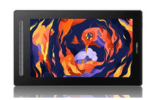
The XPPen Deco 01 V3 and Deco Pro series offer 8 fully configurable express keys. Pair them with the shortcut configurations in this guide for a dramatically faster workflow.
Shop Express Key Tablets6. Best Express Key Setup for Adobe Illustrator
Logo Design and Vector Illustration Profile (8 Keys)
Key 1: Ctrl+Z — Undo. Key 2: Ctrl+Shift+Z — Redo. Key 3: A — Direct Selection Tool (for bezier node editing). Key 4: V — Selection Tool. Key 5: P — Pen Tool. Key 6: Ctrl+G — Group selected objects. Key 7: Ctrl+Shift+G — Ungroup. Key 8: Ctrl+S — Save.
Why Illustrator Benefits from Tablet Keys
In Illustrator, the constant switching between the Selection Tool (V), Direct Selection Tool (A), and Pen Tool (P) defines most vector design workflows. Assigning these three tools to three adjacent express keys means the left hand controls tool switching while the right hand holds the stylus, creating a genuinely efficient two-handed input workflow for bezier curve manipulation and logo design.
7. Setting Up Application-Specific Profiles
Application-specific profiles are the most powerful feature in the XPPen driver and the one that most users never configure. They allow completely different express key assignments to activate automatically when a specific application is in focus, with no manual switching required.
Creating a New Application Profile
Open the XPPen driver. In the application dropdown near the top of the driver window, click the plus icon or the Add Application button. A file browser opens: navigate to the executable file of your application. On Windows, Photoshop.exe is typically in C:\Program Files\Adobe\Adobe Photoshop [version]\. On macOS, the application is in the Applications folder. Select the executable and click Open. The driver creates a new profile for that application.
Switching Between Profiles
Once profiles are created, switching is automatic. When Photoshop is in focus, the Photoshop profile activates. When you switch to Krita, the Krita profile activates within half a second. The current profile name is visible in the driver tray icon tooltip. This eliminates the need to remember which key does what across different applications.
8. Configuring the Physical Dial on Deco Pro Models
The physical dial on the Deco Pro series supports continuous rotation in both directions, mapped to two repeating key commands. The dial's continuous action makes it ideal for operations that benefit from smooth incremental adjustment rather than discrete steps.
Best Dial Assignments
For Photoshop retouching: clockwise = ] (brush size up), counterclockwise = [ (brush size down). This gives one-finger continuous brush size control that is faster and more ergonomic than pressing bracket keys repeatedly. For Krita illustration: clockwise = Shift+6 (canvas rotate right), counterclockwise = Shift+4 (canvas rotate left). For Toon Boom Harmony animation: clockwise = Right Arrow (next frame), counterclockwise = Left Arrow (previous frame).
Multi-Function Dial Toggle
Some Deco Pro models allow the dial to toggle between multiple assigned function sets using a central press. Assign one function set to brush size and a second set to canvas zoom, and press the dial to switch between them during a session. This doubles the utility of the dial without requiring a driver settings change.
9. Pen Barrel Button Configuration
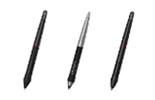
Most XPPen styluses include one or two buttons on the pen barrel, positioned to be reachable with the thumb or index finger while holding the pen normally. These are configured in the driver's Pen section, separate from the express keys.
Recommended Barrel Button Assignments
The most universally useful barrel button assignment is Right Click on the primary button and Ctrl+Z (undo) on the secondary button. Right-click activates the eyedropper colour sampler in Photoshop and Krita when hovering over the canvas (Alt+Click in Photoshop, but this varies by tool), and accesses context menus across applications. The undo assignment on the secondary button provides an immediate correction option without moving the hand to the express keys.
Eraser on the Reverse Tip
Many XPPen styluses support a physical eraser on the reverse end of the pen. This is configured in the driver's Pen section and functions as a dedicated eraser that activates when the pen is physically flipped. For illustrators who frequently alternate between drawing and erasing specific marks (common in inking workflows), the physical eraser provides a more intuitive correction method than pressing an eraser shortcut key.
10. Who Benefits Most from Express Key Optimisation?
- Configuring express keys eliminates keyboard travel for the most common drawing operations, reducing session time and improving creative flow.
- Seven core assignments (undo, step back, brush size up/down, brush hardness up/down, eraser, save) cover 85 percent of Photoshop retouching operations.
- Canvas rotation is the most impactful Krita express key assignment that most Indian artists have never configured.
- Application-specific profiles switch key assignments automatically when you change focus between applications, with no manual input required.
- The physical dial on Deco Pro tablets is best used for brush size in Photoshop and canvas rotation in Krita for maximum daily workflow benefit.
- Introduce three keys at a time and build up assignments gradually to ensure each shortcut becomes genuinely instinctive before adding more.
11. Related Reading
12. Frequently Asked Questions
How do I configure express keys on an XPPen tablet in India?
Open the XPPen driver from the system tray (Windows) or menu bar (macOS). Navigate to the Keys tab. Click any key button to open the shortcut assignment panel. Type your keyboard shortcut or select from the dropdown. Click OK to save. Download the latest driver from XPPen India support if your driver version does not show a Keys tab.
Can I set different express key shortcuts for Photoshop and Krita on the same XPPen tablet?
Yes. The XPPen driver supports application-specific profiles. Open the driver, click Add Application, browse to the application executable, and create a separate key profile. The driver switches automatically when you change application focus. This is described in detail in Section 7 of this guide.
What shortcuts should I assign to express keys for Photoshop retouching in India?
For Photoshop retouching: Ctrl+Z (undo), Ctrl+Alt+Z (step back), [ (brush size down), ] (brush size up), Shift+[ (soften edge), Shift+] (harden edge), E (eraser), and Ctrl+S (save). These eight assignments cover 85 percent of all retouching operations. See the photo editing tablet guide for the full Photoshop workflow.
What is the most useful express key assignment for illustrators using Krita in India?
Canvas rotation is the single most impactful assignment that most Krita users never configure. Assign canvas rotation left and right (Shift+4 and Shift+6) to two express keys. Rotating the canvas to a natural drawing angle for each stroke dramatically reduces wrist strain and improves line quality during long illustration sessions.
How do I use the physical dial on the XPPen Deco Pro in India?
Open the driver and navigate to the Wheel or Dial section. Assign clockwise rotation to ] (brush size up) and counterclockwise to [ (brush size down) for Photoshop retouching. For Krita, assign canvas rotation. For Toon Boom animation, assign left and right arrow keys for timeline scrubbing. The Deco Pro Small and Deco Pro MW/LW Gen 2 both include the physical dial.
What are pen side buttons on an XPPen stylus and how do I configure them?
Most XPPen styluses include two buttons on the barrel. Configure them in the driver's Pen section. Recommended assignments: primary button = Right Click (eyedropper in Photoshop and Krita), secondary button = Ctrl+Z (undo). The barrel buttons provide fast single-hand access to corrections without lifting the pen from the drawing surface.


