






Graphic Tablet for Photo Editing in Photoshop and Lightroom India
Key Highlights
✅ Pen tablets significantly improve Photoshop masking, frequency separation, dodge and burn, healing, clone stamp work and skin retouching by mapping pressure directly to brush intensity and opacity.
✅ Lightroom benefits from tablet use mainly through precision local adjustment brushwork, even though pressure sensitivity is less central than in Photoshop.
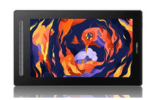
✅ The XPPEN Deco 01 V3 is the top recommendation for Indian photo editors in Photoshop, offering a large 10 x 6.25 inch active area, 16,384 pressure levels, 60 degree tilt support and eight customizable express keys.
✅ Photo editors do not need a pen display. A pen tablet delivers excellent precision at a fraction of the cost because photo editing is usually done while looking at a primary monitor.
✅ Configuring express keys for Photoshop retouching shortcuts reduces keyboard dependency and speeds up masking, healing and brush based workflows.
✅ Portrait and wedding photographers in India who retouch for two or more hours daily see the fastest return on investment from a tablet upgrade.
In This Article
- Why Photo Editors Use Graphic Tablets
- How Pressure Sensitivity Transforms Retouching
- Tablet Comparison for Photo Editing in India
- Best Tablet for Photoshop Retouching in India
- Using a Tablet in Adobe Lightroom Classic
- Configuring Your Tablet for Photoshop Workflows
- Key Retouching Techniques That Benefit from a Tablet
- Common Setup Mistakes for Photo Editor Tablets
- Professional Tips from Indian Photography Retouchers
- Who Uses Tablets for Photo Editing in India?
- Related Reading
- Frequently Asked Questions
Photo editing with a graphic tablet is one of the most under discussed upgrades available to Indian photographers and retouchers. While the digital art and illustration community readily adopts tablets as their primary input device, many portrait and wedding photographers continue to perform detailed Photoshop skin retouching with a mouse, which is slower and less precise than stylus based work.
The pressure sensitivity of a pen tablet is not a feature made only for artists. It is equally useful for anyone who uses opacity sensitive brushes in Photoshop or local adjustment brushes in Lightroom.
Browse the XPPEN pen tablet range and explore the models most used by Indian photo editors before reading this workflow guide.
This guide is written for Indian photographers, photo retouchers and Lightroom users who are evaluating whether a graphic tablet will improve their workflow and which model they should choose. The XPPEN India team has worked with photography studios and independent retouchers across India, and the observations in this guide reflect genuine workflow improvements experienced by professional users in this segment.
Written by Nishit Shah, Country Manager.
Last reviewed: May 2026
1. Why Photo Editors Use Graphic Tablets
A mouse has two pressure states: button pressed or button not pressed. It conveys no information about how hard the user is pressing, which means every mouse click triggers at either full intensity or zero intensity.
In Photoshop’s brush based tools, this becomes a major limitation. The Healing Brush, Clone Stamp, Dodge and Burn tools and layer mask brushes are all designed to benefit from controlled pressure variation. Using them with a mouse often requires manually adjusting opacity or flow settings between strokes, which slows down the retouching process.
A pen tablet’s stylus communicates thousands of pressure levels between the lightest touch and maximum pressure.
✅ Pressing gently applies a subtle healing effect.
✅ Pressing firmly applies a stronger correction.
✅ Light pressure creates soft transitions.
✅ Stronger pressure builds up opacity faster.
✅ The hand controls the effect naturally instead of constantly changing settings.
This gives retouchers a more natural, controlled and efficient way to work.
2. How Pressure Sensitivity Transforms Retouching
Masking and Selections
Creating accurate selections in Photoshop with the Brush tool on a layer mask is faster and more accurate with a stylus than with a mouse. The precision of pen tip contact allows the retoucher to follow edges, hairlines and skin boundaries with better control.
A tablet helps with:
✅ Hair masking
✅ Subject cutouts
✅ Skin and background separation
✅ Product edge refinement
✅ Selective colour correction
✅ Manual mask cleanup
Combined with pressure sensitive brush softness, selections made with a tablet look cleaner and more natural.
Frequency Separation Skin Retouching
Frequency separation separates a portrait into two layers:
✅ High frequency layer for texture, pores and fine details
✅ Low frequency layer for colour and tone correction
On the low frequency layer, blending uneven skin tones requires brush strokes at varying opacity. A stylus makes this natural because your hand pressure controls the intensity of each stroke. With a mouse, the same effect is harder to control and usually takes longer.
Dodge and Burn
Dodge and burn retouching maps beautifully to stylus pressure. Retouchers can sculpt light across a face by using gentle pressure for subtle corrections and stronger pressure for more visible adjustments.
This technique is useful for:
✅ Skin tone correction
✅ Highlight control
✅ Shadow shaping
✅ Portrait depth
✅ Natural looking face retouching
✅ Product shine correction
Tip
For dodge and burn retouching, create a new layer above your image, fill it with 50 percent neutral grey and set its blend mode to Overlay or Soft Light. Use Dodge and Burn tools on this layer only. This non destructive approach preserves the original image and allows you to toggle visibility to check your progress.
A pressure sensitive stylus makes this process feel more like painting with light.
Also Read: How to Enhance Photo Editing with Pen Tablets: A Retoucher’s Perspective
3. Tablet Comparison for Photo Editing in India
XPPEN Star G640
✅ Product name: XPPEN Star G640
✅ Active area: 6 x 4 inch
✅ Pressure sensitivity: 8,192 levels
✅ Stylus: Battery free P01 stylus
✅ Shortcut keys: No shortcut keys
✅ Best for: Lightroom local adjustments, basic retouching, online teaching and beginner photo editing
✅ Approx price: Around Rs 2,499
XPPEN Deco Mini 7 V2
✅ Product name: XPPEN Deco Mini 7 V2
✅ Dimensions: 260.2 x 162.2 x 9.3 mm
✅ Active area: 7 x 4.37 inch
✅ Active area in mm: 177.8 x 111.1 mm
✅ Net weight: 307 g
✅ Pressure sensitivity: 16,384 levels
✅ Tilt support: 60 degrees
✅ Shortcut keys: 8
✅ USB interface: USB C
✅ Best for: Photoshop masking, healing, casual retouching and students who want shortcut keys in a compact tablet
✅ Approx price: Around Rs 3,399
XPPEN Deco 01 V3
✅ Product name: XPPEN Deco 01 V3
✅ Active area: 10 x 6.25 inch
✅ Thickness: 8 mm
✅ Pressure sensitivity: 16,384 levels
✅ Tilt support: 60 degrees
✅ Shortcut keys: 8 customizable express keys
✅ Resolution: 5080 LPI
✅ Report rate: 220 RPS max
✅ Reading height: 10 mm
✅ Best for: Professional portrait editing, wedding retouching, Photoshop masking and skin work
✅ Approx price: Around Rs 6,299
XPPEN Deco Pro Small
✅ Product name: XPPEN Deco Pro Small
✅ Dimensions: 350.8 x 199.5 x 16.5 mm
✅ Active area: 9 x 5 inch
✅ Active area in mm: 230.76 x 130.16 mm
✅ Pressure sensitivity: 8,192 levels
✅ Tilt support: 60 degrees
✅ Express keys: 8 customizable express keys
✅ Wheel controls: 1 mechanical wheel and 1 virtual wheel
✅ Pen: Battery free passive stylus
✅ Best for: High volume Photoshop retouching with wheel based brush size control
XPPEN Deco Pro Gen 2
✅ Product name: XPPEN Deco Pro Gen 2
✅ Active area options: 9 x 6 inch, 11 x 7 inch and 15 x 9 inch
✅ Pressure sensitivity: 16,384 levels
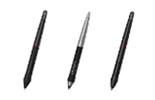
✅ Stylus: X3 Pro Smart Chip Stylus
✅ Connectivity: Bluetooth connectivity
✅ Tilt support: Yes
✅ Android support: Yes
✅ Best for: Professional retouchers, studios and users who want wireless workflow with advanced pen performance
Also Read: Optimising Your Photoshop Experience with Pen Tablets
4. Best Tablet for Photoshop Retouching in India
XPPEN Deco 01 V3: Primary Recommendation
The XPPEN Deco 01 V3 is the top recommendation for Indian photo editors doing professional portrait retouching in Photoshop.
Its 10 x 6.25 inch active area gives enough working space for detailed masking without making the tablet too large for regular desks. The upgraded 16,384 pressure levels offer smoother control over brush opacity and line weight, while 60 degree tilt support helps in brush based editing and creative work.
The eight customizable express keys can be configured for the most common Photoshop retouching shortcuts, helping reduce keyboard dependency during long retouching sessions.
Why Deco 01 V3 Works Well for Photo Editors
✅ Large 10 x 6.25 inch active area
✅ 16,384 pressure levels for smoother brush control
✅ 60 degree tilt support
✅ 8 customizable shortcut keys
✅ Slim 8 mm body
✅ Works with Photoshop, Lightroom, Illustrator and other creative software
✅ Good balance of price, size and performance
✅ Suitable for portrait, product, wedding and commercial retouching
XPPEN Deco Pro Small: Upgrade for High Volume Studios
The XPPEN Deco Pro Small is a strong upgrade option for studios and retouchers who edit large batches of images regularly.
The biggest advantage is the wheel control. For photo retouching, the wheel can be assigned to brush size, allowing you to increase or decrease brush size without constantly using keyboard shortcuts.
This is especially useful for:
✅ Healing brush work
✅ Clone stamp cleanup
✅ Dodge and burn
✅ Skin retouching
✅ Hair masking
✅ Product cleanup
✅ Batch editing workflows
XPPEN Deco Pro Gen 2: Premium Wireless Option
The XPPEN Deco Pro Gen 2 is ideal for professional retouchers who want a larger active area, 16,384 pressure levels, Bluetooth connectivity and the X3 Pro Smart Chip Stylus.
It is best suited for users who want a cleaner desk setup and more advanced pen performance.
5. Using a Tablet in Adobe Lightroom Classic
Lightroom Classic uses a different input model from Photoshop. The global adjustments in Lightroom, such as exposure, contrast, highlights, shadows and colour, are slider based and do not benefit as much from a stylus.
However, a tablet becomes useful in Lightroom when you work with local adjustments and mask refinement.
Where Tablets Help in Lightroom
✅ Adjustment Brush
✅ Mask refinement
✅ Skin tone correction
✅ Selective exposure correction
✅ Background cleanup
✅ Subject edge refinement
✅ Adding or removing from AI generated masks
Painting a skin tone warmth adjustment onto a portrait’s face while avoiding the hair, background and clothing is easier with a stylus than with a mouse. The pen follows facial contours naturally and gives better hand control.
Lightroom AI Masking and the Tablet Role
Lightroom’s AI masking tools can quickly select a subject, sky or background. However, these masks still often need refinement. A pen tablet is useful when adding or subtracting from AI generated masks manually.
In this workflow, the tablet is not replacing Lightroom AI. It is making mask correction more accurate.
Upgrade Your Retouching Workflow with XPPEN India
The XPPEN Deco 01 V3 and XPPEN Deco Pro Series are strong options for Indian portrait retouchers, wedding photographers, commercial editors and studio teams.
Explore XPPEN photo editing tablets with India warranty and official support.
6. Configuring Your Tablet for Photoshop Workflows
Express Key Assignments for Retouching
The following express key assignments cover the majority of professional Photoshop retouching operations. Configure these in the XPPEN driver’s keys section and create a Photoshop specific application profile.
✅ Key 1: Ctrl + Z for undo
✅ Key 2: Ctrl + Alt + Z for step back in history
✅ Key 3: [ for decrease brush size
✅ Key 4: ] for increase brush size
✅ Key 5: Shift + [ for softer brush edge
✅ Key 6: Shift + ] for harder brush edge
✅ Key 7: E for eraser
✅ Key 8: Ctrl + S for save
Pressure Curve for Retouching
For retouching work, set the pressure curve to a slightly firmer profile than the default. This helps moderate physical pressure map to a controlled digital output without requiring you to press too hard.
A good retouching pressure curve should feel:
✅ Controlled
✅ Comfortable
✅ Smooth for low opacity strokes
✅ Easy to build up gradually
✅ Less tiring during long sessions
Windows Ink Configuration for Photoshop
On Windows, Photoshop may require Windows Ink to recognize pen pressure correctly. In the XPPEN driver, go to Pen Settings and enable Windows Ink. Then check Photoshop’s tablet input settings if pressure is not responding.
If Windows Ink is disabled, Photoshop may treat every stroke with the same pressure, making the tablet feel like a mouse.
7. Key Retouching Techniques That Benefit from a Tablet
Frequency Separation
Frequency separation is one of the most detailed portrait retouching techniques. On the low frequency layer, use soft brush strokes to blend uneven skin tone while preserving texture on the high frequency layer.
A tablet helps by allowing you to:
✅ Blend tones more naturally
✅ Follow facial contours accurately
✅ Apply correction gradually
✅ Avoid harsh patches
✅ Work faster than with a mouse
Hair and Edge Masking
Selecting hair accurately against a varied background is one of the most time consuming tasks in portrait editing. A stylus gives better control when using Photoshop’s Select and Mask workspace.
A tablet helps with:
✅ Hair edges
✅ Clothing boundaries
✅ Product edges
✅ Jewellery cutouts
✅ Background replacement
✅ Fine detail cleanup
Healing Brush and Clone Stamp
The Healing Brush and Clone Stamp are used to remove blemishes, reduce wrinkles, clean dust, fix distractions and refine product photos.
Pressure sensitivity allows better control over correction strength.
✅ Light touch for minor blemishes
✅ Firmer pressure for stronger correction
✅ Smooth strokes for skin cleanup
✅ Better control than repeated mouse clicks
Dodge and Burn
Dodge and burn is easier with a tablet because your pressure controls how much light or shadow you build up. This gives a more natural result, especially for portraits.
Use it for:
✅ Skin shaping
✅ Highlight balancing
✅ Shadow refinement
✅ Jawline and cheekbone shaping
✅ Product depth correction
✅ Fashion and beauty retouching
8. Common Setup Mistakes for Photo Editor Tablets
Using Too Small an Active Area
A small 4 x 3 inch tablet may feel cramped during detailed Photoshop masking work, especially on larger or high resolution monitors. For professional photo editing, a medium or large active area is usually more comfortable.
Recommended options:
✅ 6 x 4 inch for basic retouching and Lightroom work
✅ 7 x 4.37 inch for compact Photoshop workflows
✅ 10 x 6.25 inch for professional retouching
✅ 9 x 5 inch or larger for studio workflows
Not Enabling Windows Ink
Photo editors on Windows may find that Photoshop does not recognize pen pressure if Windows Ink is disabled. This can make all strokes appear at the same opacity regardless of pressure.
The fix is simple: enable Windows Ink in the XPPEN driver and restart Photoshop if needed.
Leaving the Pressure Curve at Default
The default pressure curve may not match every retoucher’s hand strength. If you feel you need to press too hard, adjust the pressure curve in the driver.
A better curve can help with:
✅ Softer skin retouching
✅ Less hand fatigue
✅ More controlled opacity
✅ Smoother healing
✅ Better dodge and burn buildup
Not Creating App Specific Profiles
Photoshop and Lightroom need different shortcuts. If you use the same express key layout for both apps, the tablet may not feel optimized.
Create separate profiles for:
✅ Photoshop
✅ Lightroom Classic
✅ Illustrator
✅ Capture One
✅ General desktop use
9. Professional Tips from Indian Photography Retouchers
Use the Wheel for Brush Size in High Volume Studios
If you use the Deco Pro series, assign the wheel to brush size. Retouchers constantly increase and decrease brush size while editing portraits, products and wedding photos.
This is especially helpful for:
✅ Large skin areas
✅ Small blemishes
✅ Hair cleanup
✅ Product dust removal
✅ Background cleanup
✅ Edge masking
Create Separate Profiles for Lightroom and Photoshop
The best express key setup for Lightroom is different from Photoshop.
Useful Lightroom keys include:
✅ Adjustment Brush
✅ Mask visibility toggle
✅ Add brush mode
✅ Erase brush mode
✅ Before and after preview
✅ Crop tool
✅ Export shortcut
Photoshop profiles should focus more on brush size, undo, eraser, save and layer based retouching actions.
Use a Tablet Even If You Are Not an Artist
Photo editors often assume tablets are only for illustrators. That is not true. If your work involves brush based editing, a tablet can immediately improve precision and comfort.
You do not need drawing skills to benefit from a pen tablet. You only need a workflow that uses masks, brushes, healing or selection refinement.
10. Who Uses Tablets for Photo Editing in India?
Portrait and Wedding Photographers
✅ Skin retouching
✅ Bridal portrait cleanup
✅ Album editing
✅ Background cleanup
✅ Hair masking
✅ Batch portrait correction
Recommended product: XPPEN Deco 01 V3
Commercial and Product Photographers
✅ Dust removal
✅ Product edge cleanup
✅ Reflection correction
✅ Background masking
✅ Colour cleanup
✅ Detail refinement
Recommended product: XPPEN Deco Pro Small
Freelance Photo Editors and Retouchers
✅ Affordable workflow upgrade
✅ Faster masking
✅ Better healing control
✅ More natural dodge and burn
✅ Improved comfort during long sessions
Recommended collection: XPPEN pen tablets
Key Takeaways
✅ A graphic tablet’s pressure sensitivity maps directly to the intensity of healing, masking and dodge and burn tools in Photoshop.
✅ The Deco 01 V3 is the best tablet for professional portrait retouching in India, combining a 10 x 6.25 inch active area, 16,384 pressure levels, 60 degree tilt support and eight customizable express keys.
✅ The Deco Mini 7 V2 is a strong compact option with 16,384 pressure levels, 8 shortcut keys and 307 g net weight.
✅ The Deco Pro Small is a good upgrade for studios that want wheel based brush size control.
✅ Enable Windows Ink in the XPPEN driver before using Photoshop on Windows if pen pressure is not working.
✅ A pen tablet is often preferable to a pen display for photo editing because editors usually work while looking at a primary high resolution monitor.
✅ A stylus grip can be more comfortable than mouse use for long retouching sessions.
11. Related Reading
Photo Editing Guides
✅ How to Enhance Photo Editing with Pen Tablets
✅ Optimising Photoshop with a Pen Tablet
✅ Drawing in Adobe Illustrator with XPPEN
Products Featured
✅ XPPEN Star G640
✅ XPPEN Deco Mini 7 V2
✅ XPPEN Deco 01 V3
✅ XPPEN Deco Pro Small
✅ XPPEN Deco Pro Gen 2
Collections
✅ All Pen Tablets
✅ Deco Series
✅ Deco Pro Series
Company and Support
✅ About XPPEN India
✅ Driver Downloads and Support
✅ Contact XPPEN India
Retouch Faster and Better with XPPEN India
Professional Indian portrait and wedding photographers use XPPEN tablets to speed up Photoshop workflows and improve brush based precision. Every tablet purchased from the official XPPEN India store comes with official India support and access to updated drivers.
Explore XPPEN photo editing tablets and choose the right model for your editing workflow.
Frequently Asked Questions
1. Do photo editors in India actually need a graphic tablet or is a mouse sufficient?
A mouse is sufficient for basic edits, cropping and slider based adjustments. However, a graphic tablet is much better for Photoshop masking, healing, dodge and burn, skin retouching and detailed brush work.
2. Which XPPEN tablet is best for photo retouching in Photoshop in India?
The XPPEN Deco 01 V3 is the best overall recommendation for professional Photoshop retouching. It offers a 10 x 6.25 inch active area, 16,384 pressure levels, 60 degree tilt support and 8 customizable shortcut keys.
3. Can I use a graphic tablet with Adobe Lightroom in India?
Yes. A graphic tablet works with Lightroom and is especially useful for local adjustment brushwork and mask refinement. It is less important for global slider adjustments but very useful for manual masking.
4. Is a pen display better than a pen tablet for photo editing in India?
Not necessarily. For photo editing, a pen tablet is often the better value because most editors work while looking at a main monitor. A pen display is more useful for artists who want to draw directly on screen.
5. How do I configure an XPPEN tablet for Photoshop retouching shortcuts in India?
Set your express keys for undo, step back, brush size decrease, brush size increase, brush softness, brush hardness, eraser and save. You can also create a Photoshop specific profile in the XPPEN driver.
6. What is dodge and burn retouching and why does a tablet make it better?
Dodge and burn is a technique used to brighten or darken selected areas of an image. A tablet makes it better because pressure sensitivity lets you build light and shadow gradually with natural hand pressure.
7. Does a graphic tablet speed up photo editing in Photoshop in India?
Yes. For brush based work like masking, healing, skin retouching and dodge and burn, a graphic tablet can make editing faster, smoother and more precise than using a mouse.


