






Best Graphic Tablets in India 2026: Complete Buyer's Guide
- India's graphic tablet market has grown sharply in 2025-2026, with entry-level models now available under Rs 2,500.
- XPPen leads the mid-market segment with pressure-sensitive, driver-compatible tablets across the Deco, Star, and Artist Pro series.
- Pen tablets (screenless) suit most students and hobbyists; pen displays are for professionals who prefer drawing directly on screen.
- 16K (16,384-level) pressure sensitivity is now available across XPPen's Artist Pro Gen 2, Deco Pro Gen 2, Deco 01 V3, and Deco 640 lines; 8K remains the standard for entry tablets in the Star and Deco Fun series.
- Software compatibility matters as much as hardware: confirm driver support for your OS before buying.
- Wireless models like the Deco Pro MW/LW Gen 2 offer freedom from cables without a meaningful performance penalty.
- What Is a Graphic Tablet?
- How Graphic Tablets Work
- Types of Graphic Tablets and Key Specs
- Best Graphic Tablets Under Rs 5,000
- Best Graphic Tablets Under Rs 15,000
- How to Choose the Right Tablet for Your Needs
- Common Buying Mistakes to Avoid
- Setup and Driver Installation
- Expert Tips for Getting the Most Out of Your Tablet
- Who Uses Graphic Tablets in India?
- Related Reading
- Frequently Asked Questions
Finding the best graphic tablet in India has never been more important or more confusing. Whether you are a design student looking for your first drawing surface, an animator scaling up your studio workflow, or an educator who wants to annotate lessons in real time, the tablet you choose will directly shape the quality and speed of your work. The Indian market in 2026 offers a wider range than ever before, from entry-level graphic tablets under Rs 4,000 to professional-grade pen displays that rival anything available globally.
XPPen has been supplying the Indian creative community for several years and currently holds the strongest value position in the mid-market. The brand's India operations cover everything from beginner pen tablets to the flagship Artist Pro 16 Gen 2 with 16,384 levels of pressure sensitivity. This guide draws on hands-on observations, community feedback, and a structured comparison of every major model available in India right now to help you invest confidently.
Last reviewed: May 2026
1. What Is a Graphic Tablet?
A graphic tablet is a hardware input device that translates pressure, tilt, and movement of a stylus pen into digital signals a computer can process. Unlike a mouse, which registers only position and clicks, a stylus registers continuous pressure gradients, allowing artists to vary brush thickness and opacity exactly as they would with a traditional ink pen or watercolour brush.
Pen Tablet vs Pen Display
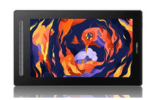
The single most important distinction in this category is whether the tablet has a screen. A pen tablet (sometimes called a screenless or blind tablet) has an active drawing surface with no display. You draw on the tablet while looking at your monitor. A pen display has a built-in LCD or OLED screen, so you draw directly on the image you are creating, much like drawing on paper.
Both types use the same underlying EMR (electromagnetic resonance) or AES (active electrostatic) technology and deliver comparable pressure sensitivity. The difference is ergonomic and financial. Pen tablets are lighter, easier on the neck and shoulders for long sessions, and considerably cheaper. Pen displays are more intuitive for beginners transitioning from paper, but they require more desk space and carry a higher price.
Market size: According to industry analysts at Statista, the global graphics tablet market was valued at approximately USD 2.1 billion in 2024 and is projected to grow at a CAGR of around 7 percent through 2030, driven significantly by demand from education and remote work applications.
2. How Graphic Tablets Work
Most graphic tablets sold in India in 2026 use electromagnetic resonance (EMR) technology. A grid of copper coils beneath the tablet surface generates a low-frequency electromagnetic field. When the stylus tip enters the field, the coil inside the pen resonates at a specific frequency, allowing the tablet to calculate the pen's X and Y position with sub-millimetre accuracy.
Pressure Sensitivity Explained
Pressure sensitivity is one of the most important factors in how natural a drawing tablet feels — and XPPen became the first brand in the world to introduce 16K pressure sensitivity in pen displays. With 16,384 pressure levels, the X3 Pro Smart Chip Stylus used in XPPen's Artist Pro 16 Gen 2 and Artist Pro Gen 2 series delivers twice the precision of the previous 8,192-level standard, allowing for smoother transitions, finer line control, and more natural stroke variation. 16k pressure sensitivity is also available across the Deco Pro Gen 2 wireless pen tablets, and several Deco models including the Deco 01 V3, Deco Mini 7 V2, and Deco 640 — bringing world-first technology to entry-level price points.
The difference is especially noticeable in portrait work, detailed character illustration, and large canvas artwork, where subtle pressure changes directly impact shading, texture, and brush flow. Combined with XPPen’s advanced stylus technology, 16K pressure sensitivity creates a more responsive and intuitive drawing experience across applications like Adobe Photoshop, Krita, and Clip Studio Paint.
Tip: When evaluating pressure sensitivity, test with the software you actually use. Krita and Clip Studio Paint interpret pressure curves differently from Photoshop. Most XPPen tablets let you fine-tune the pressure curve in the driver settings to match your personal drawing style — a five-minute adjustment that meaningfully changes how the tablet feels.
3. Types of Graphic Tablets and Key Specifications
The following table covers the main categories of tablets available in India in 2026 and their typical specification ranges. These figures reflect the current XPPen India lineup and represent what the market broadly offers at each tier.
| Category | Price Range (INR) | Active Area | Pressure Levels | Best For |
|---|---|---|---|---|
| Entry pen tablet | Rs 2,000 – Rs 5,000 | Small (4x3" – 6x4") | 8,192 / 16,384 | Students, hobbyists, online teaching |
| Mid-range pen tablet | Rs 5,000 – Rs 12,000 | Medium (8x5" – 10x6") | 8,192 / 16,384 | Illustrators, photo editors, animators |
| Professional pen tablet | Rs 12,000 – Rs 25,000 | Large (10x6" – 12x8") | 8,192 / 16,384 | Studio professionals, graphic designers |
| Entry pen display | Rs 18,000 – Rs 35,000 | 10" – 13" screen | 8,192 / 16,384 | Hobbyists transitioning from paper |
| Professional pen display | Rs 35,000 – Rs 90,000+ | 16" – 24" screen | 8,192 / 16,384 | Full-time digital artists, VFX, studios |
4. Best Graphic Tablets Under Rs 4,000 in India
XPPen Deco Fun Small
The Deco Fun Small is a compact, colourful pen tablet that packs 8,192 pressure levels into a chassis that weighs under 300 grams. It connects via USB-C, supports Android devices via OTG, and works with Krita, Photoshop, and Clip Studio Paint out of the box. It is the strongest choice in India under Rs 3,500.
XPPen Star G640
The Star G640 has been a bestseller in Indian colleges for several years. Its 6x4-inch active area covers a standard A6 working zone, and the slim profile makes it easy to carry in a laptop bag. At around Rs 2,699, it is unmatched for price-to-performance in the student segment.
XPPen Deco Mini 7 V2
For those who need a slightly larger working area, the Deco Mini 7 V2 offers a 7x4.37-inch surface with 16,384 pressure levels and tilt recognition up to 60 degrees. This tilt response is valuable for brushwork in Procreate-style applications.
Value benchmark: The XPPen tablets under Rs 4,000 consistently outsell competing brands on Indian e-commerce platforms because they ship with a full-featured driver and a battery-free stylus, both of which cheaper competitors often omit.
5. Best Graphic Tablets Under Rs 15,000 in India
XPPen Deco 01 V3
The Deco 01 V3 is widely regarded as the best mid-range tablet available in India. With a 10x6.25-inch active area, 8 customisable express keys, and a tilt-responsive battery-free stylus, it covers every use case from illustration to photo retouching in Lightroom.
XPPen Deco Pro Small
The Deco Pro Small comes with a dual-wheel control (outer mechanical dial + inner virtual touch ring) on top of the standard express key configuration. It is the choice for designers who switch frequently between Illustrator and Photoshop and want hardware shortcuts they can operate without lifting their eyes from the screen.
Explore the Full XPPen Pen Tablet Range
Compare active area, pressure sensitivity, and wireless options across every model available in India. Free shipping on orders above Rs 999.
Shop Graphic TabletsXPPen Deco Pro MW/LW Gen 2
For professionals who value a cable-free desktop, the Deco Pro MW/LW Gen 2 delivers wireless connectivity via Bluetooth 5.0 alongside a full-size working surface. The battery lasts approximately 10 hours on a single charge, making it usable through a full studio day without interruption.
6. How to Choose the Right Graphic Tablet for Your Needs
Step 1: Define Your Primary Use Case
An online teacher annotating slides needs something different from a manga artist inking pages. Start by listing your three most common tasks and what software you use for them. This immediately filters out half the market.
Step 2: Choose an Active Area Size
Active area should scale with your monitor resolution and your natural drawing range of motion. A 6x4-inch tablet pairs well with a 1080p monitor. A 10x6-inch or larger surface is more appropriate for 1440p and 4K displays where cursor travel requires larger hand movements to remain precise.
Step 3: Decide on Wired or Wireless
Wireless tablets from the Deco Pro series add convenience for clean desk setups. Wired tablets are lighter, require no charging discipline, and have no latency risk. For studio work on a fixed desk, wired is simpler.
Step 4: Check Software and OS Compatibility
All XPPen tablets ship with a driver that supports Windows 7 (or later). Several models additionally support Android. Confirm compatibility before buying, especially on macOS 10.10 or later where some older third-party drivers have reported issues.
7. Common Buying Mistakes to Avoid
Buying Too Small an Active Area
The most frequent regret among first-time buyers in India is purchasing a tablet that is too small. A 4x3-inch active area feels cramped when drawing full-body character illustrations or retouching large-format portraits. Unless your budget is genuinely constrained, go one size larger than you think you need.
Ignoring Driver Quality
Hardware pressure levels are meaningless if the driver does not translate them accurately to the software. XPPen's driver is updated regularly and has been tested with Photoshop, Illustrator, Clip Studio Paint, Krita, and GIMP. Some cheaper tablets sold on Indian marketplaces ship with outdated or unsupported drivers that produce lag and jitter.
Always download the latest driver directly from the manufacturer's official site rather than using the disc that ships in the box. Driver discs are typically six to twelve months behind the current version and may not support your OS.
Overspending on Pen Displays Before Mastering a Pen Tablet
Many art educators recommend learning on a screenless pen tablet first. Drawing without looking at your hand trains hand-eye coordination that actually makes you faster on both tablets and pen displays. Jumping to a Rs 50,000 pen display as a beginner often means spending on a learning curve that a Rs 4,000 tablet would have handled equally well.
8. Setup and Driver Installation
Setting up an XPPen tablet takes under ten minutes. Download the latest driver from XPPen India support, run the installer, restart your machine, and connect the tablet via USB. The driver tray icon will appear in your system menu, from which you can map the active area to your monitor, configure express keys, and adjust the pressure curve.
Configuring for Photoshop on Windows 11
Open Photoshop's brush settings and ensure Windows Ink is enabled in the tablet driver. Photoshop CC 2022 and later require Windows Ink for full pressure recognition. If you see flat, uniform lines without pressure variation, check that Windows Ink is toggled on in the XPPen driver panel under the pen settings tab.
Configuring on macOS
On macOS, grant the XPPen driver accessibility permissions under System Settings, Privacy and Security. Without this, the driver cannot pass pressure data to Adobe applications. Users on macOS Ventura 13.3 and later may need to allow the driver in Security Extensions as well.
9. Expert Tips for Getting the Most Out of Your Tablet
Customise Your Express Keys Immediately
The single highest-leverage setup step is remapping express keys to your most-used shortcuts. In Photoshop, binding Ctrl+Z (undo), [ and ] (brush size), and Ctrl+S (save) to physical keys eliminates keyboard dependency for 80 percent of common commands. Users who configure express keys within their first week consistently report faster workflow improvements than those who leave them at default.
Calibrate Your Pressure Curve
The default pressure curve on most tablets is linear, meaning equal effort produces equal pressure output across the full range. For inking with very fine lines, a softer curve (where light touches produce proportionally less output) gives you more control at the feather-light end of the range. XPPen's driver includes a visual pressure curve editor in the stylus settings tab.
Workflow insight: Experienced animators and illustrators recommend mapping the dial on Deco Pro models to canvas rotation rather than zoom. Rotating the canvas to a comfortable drawing angle dramatically reduces wrist strain during long illustration sessions, according to ergonomic research published by the National Institutes of Health on repetitive strain in digital artists.
Use a Drawing Glove
The XPPen drawing glove reduces friction between your palm and the tablet surface, prevents smudging on pen displays, and lowers the risk of accidental touch input. It is a small investment that noticeably improves the feel of extended drawing sessions in Indian humidity.
10. Who Uses Graphic Tablets in India?
India's creative economy is diverse, and graphic tablets serve a wide range of professionals and learners. The segments below reflect the primary communities using XPPen tablets across India in 2026.
- Define your use case before looking at specs: active area and software compatibility matter more than raw pressure level numbers.
- Under Rs 4,000, the XPPen Star G640, Deco 640 and Deco Mini 7 V2 represent the best value for students and beginners in India.
- The Deco 01 V3 is the standout choice in the Rs 5,000 to Rs 12,000 range for most creative professionals.
- Wireless tablets from the Deco Pro Gen 2 line eliminate cable clutter without introducing latency for studio use.
- Download drivers from the official site and configure pressure curves and express keys before your first serious session.
- A pen display is not necessary to produce professional-quality work; many top Indian digital artists use screenless tablets exclusively.
11. Related Reading
12. Frequently Asked Questions
Which graphic tablet is best for beginners in India in 2026?
For beginners in India, the XPPen Deco Fun Small or Deco 01 V3 are excellent starting points. They offer reliable pressure sensitivity, a generous active area, and driver software that works seamlessly on both Windows and macOS without a steep learning curve. Both are available under Rs 4,000 to Rs 6,000 and come with a one-year warranty.
What is the difference between a graphic tablet and a pen display?
A graphic tablet (pen tablet) has no screen. You draw on a flat surface while watching your monitor. A pen display has a built-in screen, so you draw directly on the image. Pen tablets are more affordable and better for ergonomic workflows. Pen displays are more intuitive but cost more. Read our detailed pen tablet vs display tablet guide for a full comparison.
Are graphic tablets compatible with Android and iPad in India?
Several XPPen models support Android and, in some cases, iOS via USB-C or OTG. The Deco series and newer Deco Pro models include Android compatibility. Always check the specific product page for confirmed device support before purchasing.
How much should I spend on a graphic tablet in India as a student?
Students can find capable tablets between Rs 2,500 and Rs 5,000. The XPPen Deco Mini 7 and Star G640 offer adequate pressure levels and active area for coursework, digital note-taking, and basic illustration without straining a student budget.
Does a higher pressure level make drawing feel more natural?
Up to a point, yes. The jump from 2,048 to 8,192 pressure levels is noticeable for fine line work in Photoshop and Krita. The difference between 8,192 and 16,384 (16K) is subtler and primarily benefits professional illustrators working on very fine detail or portraiture at large canvas sizes.
Can I use a graphic tablet for online teaching in India?
Yes. Graphic tablets are widely used by educators for whiteboard annotation in Zoom, Google Meet, and Microsoft Teams. A compact model like the XPPen Deco Mini 7 or Star G640S works well for this purpose. XPPen also has a dedicated collection for online teaching and meetings.
Is XPPen better than Wacom for Indian buyers?
XPPen delivers comparable pressure sensitivity and build quality at prices 40 to 60 percent lower than equivalent Wacom models in India. For students and intermediate artists, XPPen offers significantly more value. Professional studios with existing Wacom infrastructure may prefer to stay with Wacom for compatibility reasons.
What software works best with graphic tablets in India?
Krita and GIMP are the top free options and both work natively with XPPen tablets through the driver. Adobe Photoshop, Illustrator, and Clip Studio Paint are the professional standards. Medibang Paint and FireAlpaca are popular among manga and anime artists. See our roundup of the best drawing apps for every skill level for a detailed breakdown.


