






How to Calibrate Your Pen Display for Accurate Colour India
- Every pen display requires calibration before professional use to correct panel-to-panel variations and generate an ICC profile that colour-managed applications use automatically.
- Hardware calibration with a colorimeter is the professional standard; software calibration is a viable free alternative for digital-first workflows.
- Target settings for most Indian creative workflows: 120 cd/m2 brightness, D65 (6500K) white point, gamma 2.2.
- Set Photoshop's working colour space to sRGB for screen work and Adobe RGB for print; configure Illustrator similarly to ensure colour consistency across deliverables.
- Recalibrate every three to four months to compensate for panel drift in display brightness and colour temperature over time.
- Dual-display setups in India require calibrating both the pen display and the primary monitor to the same target standard for consistent colour judgements across screens.
- Why Colour Calibration Matters for Indian Creative Professionals
- Understanding ICC Profiles and Colour Management
- Tools for Calibration: Hardware vs Software
- Step-by-Step Hardware Calibration Guide
- Free Software Calibration for Beginners
- Setting Up Photoshop Colour Management
- Setting Up Illustrator and InDesign Colour Management
- Calibrating a Dual-Display Setup in India
- Common Calibration Mistakes and How to Avoid Them
- Who Needs Precise Calibration in India?
- Related Reading
- Frequently Asked Questions
Colour calibration is the step that separates a pen display used for personal artwork from a pen display used for professional commercial work. Without calibration, the colours on your XPPen Artist display may look accurate in isolation but shift noticeably when the file is opened on a client's monitor, printed at a bureau, or uploaded to a platform with its own colour profile. For Indian graphic designers, illustrators, and photographers, this colour shift is not an abstract technical concern: it results in rejected print proofs, client revisions, and the professional embarrassment of delivering work that does not match the agreed colour specification. This guide shows exactly how to calibrate an XPPen pen display for Photoshop and Illustrator workflows, from the quick free method to the professional hardware approach.
Last reviewed: May 2026
1. Why Colour Calibration Matters for Indian Creative Professionals
Every display panel is manufactured with slight variations in the way it reproduces colour. Two pen displays from the same production batch, with identical specification sheets, will show measurably different colour output. Without calibration, these variations accumulate silently: a skin tone that appears warm and correct on your display may appear cooler or more saturated on a client's monitor. A logo colour selected to match a Pantone standard may miss the swatch by a visible amount when printed.
Calibration corrects these deviations. A hardware colorimeter measures your specific panel's actual colour output and generates an ICC (International Colour Consortium) profile that your operating system applies to the display signal. All colour-managed applications, including Photoshop, Illustrator, Lightroom, and InDesign, read this profile and adjust their output to compensate for the panel's individual characteristics.
Professional standard: The ISO 3664 standard for viewing conditions in graphic arts and photography specifies 80 to 160 cd/m2 display luminance, a D50 or D65 white point, and a gamma of 2.2 for professional colour work. Meeting this standard ensures that your display output is meaningfully comparable to other calibrated devices in the professional colour workflow chain.
2. Understanding ICC Profiles and Colour Management
An ICC profile is a data file that describes how a device (display, printer, scanner) reproduces colour relative to a device-independent reference colour space. When an application like Photoshop opens an image, it reads both the image's embedded colour profile (describing where the colours are in the reference space) and the display's ICC profile (describing how the display renders the reference space) and adjusts the display signal so the colours appear correctly.
The Display Profile vs the Working Colour Space
The display ICC profile corrects the panel's physical output. The working colour space in Photoshop (sRGB or Adobe RGB) defines the range of colours stored in your file. These are two separate settings that serve different purposes. The display profile is set at the operating system level; the working colour space is set inside each application.
3. Tools for Calibration: Hardware vs Software
| Method | Cost (India) | Accuracy | Best For | How It Works |
|---|---|---|---|---|
| Hardware colorimeter (Datacolor Spyder X) | Rs 8,000–12,000 | Professional | Print, brand, commercial work | Measures actual panel output, creates precise ICC profile |
| Hardware colorimeter (X-Rite i1Display Pro) | Rs 18,000–25,000 | Professional+ | High-end print, photography, cinema | Same as Spyder X with wider measurement range |
| OS software calibration (Windows, macOS) | Free | Approximate | Digital-first, social media, web | Visual adjustment using built-in OS wizard |
| DisplayCAL (free software, colorimeter required) | Free (needs hardware) | Professional | Open-source professional calibration | Free calibration software, works with most colorimeters |
4. Step-by-Step Hardware Calibration Guide
Step 1: Warm Up the Display
Turn on the pen display and leave it running for 30 minutes before measuring. IPS LCD panels need time to reach stable operating temperature. Calibrating a cold display produces an ICC profile that is inaccurate within minutes of the session starting.
Step 2: Set the OSD (On-Screen Display) to a Neutral Starting Point
Press the OSD buttons on the side of your XPPen display. Set Brightness to approximately 50 percent (you will fine-tune this during calibration). Set Colour Temperature to a custom mode rather than Warm or Cool presets. Set Contrast to its default (100 or the neutral midpoint). Do not use Vivid or Cinema presets, which apply non-linear corrections that interfere with calibration.
Step 3: Close All Applications Except the Calibration Software
Open your colorimeter software (Datacolor Spyder software or DisplayCAL). Ensure no screensaver, power saving mode, or Night Mode is active on the display during the measurement process.
Step 4: Set Calibration Targets
In the software, set: White Point to D65 (6500K). Luminance to 120 cd/m2 (or 100 cd/m2 for a darker room). Gamma to 2.2. Profile bit depth to 16-bit for better shadow gradation.
Step 5: Place the Colorimeter and Measure
Attach the colorimeter to the display surface according to the manufacturer's guide. The software will display a series of colour patches. The colorimeter measures the display's actual output for each patch and compares it to the expected value. This process takes five to fifteen minutes.
Step 6: Save and Apply the ICC Profile
When measurement is complete, the software generates and saves an ICC profile. It will prompt you to apply it as the default display profile. Click Apply. On Windows, the profile is stored in C:\Windows\System32\spool\drivers\color\. On macOS, it is stored in Library, ColorSync, Profiles. All colour-managed applications now use this profile automatically.
If you use two monitors (your pen display plus a primary monitor), you must calibrate both separately and apply their individual ICC profiles to the correct display in the OS colour management settings. Using the same profile for both displays is a common mistake that defeats the purpose of calibration in a dual-monitor setup.
5. Free Software Calibration for Beginners
For Indian artists who are not yet at the professional print-critical stage, the built-in OS calibration wizards provide a reasonable starting point at no cost. These tools guide you through visual adjustments of brightness, contrast, gamma, and white point using test patterns viewed on screen. The result is less accurate than hardware calibration but significantly better than running with an uncalibrated factory profile.
Windows 11 Display Calibration
Search for Calibrate Display Colour in the Windows search bar. Follow the wizard through five adjustment steps: gamma, brightness, contrast, and colour balance. The wizard saves a profile and sets it as the display default. This process takes approximately five minutes.
macOS Display Calibration
Go to System Settings, Displays, and click Colour Profile, then Customise. Click the plus button to add a profile. The Display Calibrator Assistant guides you through multi-step gamma and white point adjustments. Save the resulting profile with a descriptive name (for example, "XPPen Artist 16 D65 Soft 2026").
Get the Best Colour Accuracy from Your XPPen Display
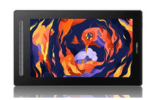
The XPPen Artist Pro 16 Gen 2 offers 99% sRGB and 97% Adobe RGB, 99% DCI P3 — pair it with hardware calibration for the most colour-accurate professional drawing setup available in India.
Shop XPPen Pen Displays6. Setting Up Photoshop Colour Management
After applying your display ICC profile, configure Photoshop's internal colour management to work with it correctly.
Photoshop Colour Settings
Go to Edit, Colour Settings (Ctrl+Shift+K on Windows, Cmd+Shift+K on macOS). For digital-first output (social media, web, screen): set Working Space, RGB to sRGB IEC61966-2.1. For print output (packaging, advertising, books): set Working Space, RGB to Adobe RGB (1998). Under Colour Management Policies, set all three options to Convert to Working RGB. Under Profile Mismatches, enable Ask When Opening and Ask When Pasting.
Soft Proofing for Print
Soft proofing simulates how your artwork will appear on a specific printer or output device. Go to View, Proof Colours (Ctrl+Y) and select your printer's ICC profile in View, Proof Setup, Custom. This allows you to evaluate your artwork's appearance in CMYK print space before sending to a print bureau, reducing costly colour surprises in proof prints.
7. Setting Up Illustrator and InDesign Colour Management
Adobe's Creative Cloud applications share colour settings when you synchronise them through Adobe Bridge or Creative Cloud. Go to Edit in Bridge (or use the Creative Cloud app's colour settings synchronisation option) and confirm that your working colour space matches the intention of your project. This ensures consistent colour behaviour across Photoshop, Illustrator, and InDesign without needing to configure each application separately.
Illustrator Colour Mode
When creating a new document in Illustrator, select the correct Colour Mode in the new document dialog: RGB for screen and web output, CMYK for print. Switching modes after starting work converts all colours, which can cause unintended shifts. Set the mode correctly from the first step of each project.
8. Calibrating a Dual-Display Setup in India
Many Indian artists use their pen display alongside a primary monitor. For colour consistency, both displays must be calibrated to the same target standard. If your pen display is calibrated to D65 at 120 cd/m2 but your primary monitor is uncalibrated at 200 cd/m2 with a warm colour cast, moving a Photoshop window from one display to the other will produce a visible colour shift that makes colour judgement unreliable.
Practical Dual-Calibration Procedure
Calibrate both displays to the same targets: D65 white point, 120 cd/m2 brightness, gamma 2.2. Apply each display's ICC profile to the correct display in Windows Display Settings, Advanced Display, Display Adapter Properties, Colour Management, or in macOS System Settings, Displays, Colour Profile. When both displays are calibrated to the same standard, moving artwork between them produces consistent colour appearance.
9. Common Calibration Mistakes and How to Avoid Them
Calibrating in Bright Sunlight
Calibrating a display in direct sunlight produces an inaccurate ICC profile because ambient light affects the perceived brightness of calibration test patches. Always calibrate in a room with consistent, moderate artificial light or with blinds closed. Indian studios with large east-facing windows should calibrate in the evening rather than morning when the sun is most direct.
Using Manufacturer Presets Instead of Custom Settings
Colour presets like Vivid, Movie, or Gaming apply non-linear adjustments to the display signal that interfere with colorimeter measurements. Always reset the OSD to a neutral Custom or User mode before calibrating, with brightness set manually rather than through Auto mode.
Not Recalibrating After OS Updates
Major macOS and Windows updates occasionally reset display colour profiles to factory defaults or install generic profiles that replace custom calibration. After any major OS update, verify in the display's colour management settings that your custom ICC profile is still applied. If the profile has been replaced, re-apply your saved calibration file.
10. Who Needs Precise Calibration in India?
- Every pen display requires calibration to generate an ICC profile that corrects panel-specific colour deviations for accurate colour output in Photoshop and Illustrator.
- Target 120 cd/m2 brightness, D65 (6500K) white point, and gamma 2.2 for standard digital and print workflows in India.
- Hardware colorimeters (Datacolor Spyder X, X-Rite i1Display Pro) produce professional accuracy; OS software calibration is a viable free starting point for digital-first work.
- Configure Photoshop to sRGB (screen work) or Adobe RGB (print work) as the working colour space, and enable profile mismatch warnings.
- Recalibrate every three to four months to compensate for panel brightness drift and colour temperature shift.
- In dual-display setups, calibrate both screens to the same target standard to ensure consistent colour appearance when moving artwork between monitors.
11. Related Reading
12. Frequently Asked Questions
Why do colours look different on my pen display than on other screens in India?
Colour differences are caused by panel-specific variations in colour reproduction that deviate from the reference standard. Without calibration, these deviations cause colour shifts between your pen display and other screens. An ICC profile generated by hardware calibration corrects these deviations, making all colour-managed applications including Photoshop show accurate colours. Apply the profile in your OS display settings.
Do I need a hardware colorimeter to calibrate my pen display in India?
A hardware colorimeter produces the most accurate results. The Datacolor Spyder X (Rs 8,000 to Rs 12,000) and X-Rite i1Display Pro (Rs 18,000 to Rs 25,000) are available in India. For digital-first work, the free OS software calibration wizard is a practical alternative that provides meaningful improvement over an uncalibrated factory profile.
What colour temperature should I set my pen display to in India?
Set the white point to D65 (6500 Kelvin) for digital publishing, web design, and illustration. D65 is the international standard that ensures your display matches standard sRGB monitors. For print-critical work, some professionals use D50 (5000 Kelvin). Set this in the display's OSD before hardware calibration.
How often should I recalibrate my pen display in India?
Recalibrate every three to four months for professional colour work. IPS panels drift gradually. In India's warm climate with long daily use, drift may occur slightly faster. Set a recurring calendar reminder for calibration to maintain consistent colour accuracy throughout the year. After major OS updates, verify your ICC profile is still applied correctly.
What brightness should I set my pen display to for drawing in India?
For typical Indian indoor studio environments, set brightness between 100 and 150 cd/m2. Lower brightness (80 to 100 cd/m2) is appropriate for dark rooms. Higher brightness (150 to 200 cd/m2) is needed for rooms with strong overhead fluorescent lighting. The display should not appear to glow relative to your surroundings when drawing.
How do I set up colour management in Photoshop for my calibrated pen display in India?
Go to Edit, Colour Settings in Photoshop. Set Working Space, RGB to sRGB IEC61966-2.1 for screen-first workflows, or Adobe RGB (1998) for print. Enable Ask When Opening under Profile Mismatches. For print work, use View, Proof Setup to configure soft proofing for your print profile. See our detailed pen display for designers colour guide for additional workflow setup steps.


