






Beginner's Guide to Digital Art with a Drawing Tablet
- No art background needed: Digital art with a drawing tablet is learnable from scratch — consistent practice and good beginner exercises build the skills progressively.
- Free software available: Krita, MediBang Paint, and GIMP are professional-quality free applications that work excellently with all XPPen tablets.
- Start small, grow smart: A Rs 2,999 entry-level XPPen tablet is all you need to begin — upgrade to a pen display once your skills and workflows justify it.
- Adjustment period is normal: Most beginners feel comfortable with their tablet within one to three weeks of regular practice sessions.
- Pressure control is the core skill: Learning to draw with deliberate, varied pressure is the foundation of expressive digital art and the first skill to develop.
- Tablet setup takes minutes: XPPen drivers install in under ten minutes, and the tablet works with Windows, macOS, Linux, and Android out of the box.
- 1. What You Need to Start Digital Art in India
- 2. How a Drawing Tablet Works for Beginners
- 3. Choosing Your First Drawing Tablet
- 4. Best Free and Paid Software for Digital Art Beginners
- 5. Setting Up Your XPPen Tablet for the First Time
- 6. Your First Drawing Exercises on the Tablet
- 7. Common Beginner Mistakes and How to Avoid Them
- 8. Building a Daily Practice Routine
- 9. When to Upgrade Your Equipment
- 10. Who Is Learning Digital Art in India?
- 11. Related Reading
- 12. Frequently Asked Questions
Starting digital art with a drawing tablet is one of the most rewarding creative decisions you can make — but if you have never held a stylus before, the range of hardware, software, and learning resources available can feel overwhelming. This guide cuts through the noise and gives you a clear, practical path from unboxing your first XPPen drawing tablet to producing confident, expressive digital artwork. Every recommendation here is based on direct experience with the hardware and an honest understanding of where beginners most commonly get stuck.
XPPen has been building drawing tools for creative professionals and learners since 2005. The India store at XPPen India carries a range of entry-level tablets specifically designed for people who are just starting out, with accessible pricing, easy setup, and full compatibility with the most popular free drawing applications. Whether you are a student, a working professional exploring a creative hobby, or a teacher who wants to annotate lessons more naturally, this guide applies to you.
Last reviewed: April 2026
1. What You Need to Start Digital Art in India
The complete beginner's digital art setup consists of four elements: a drawing tablet, a computer or laptop, drawing software, and time for regular practice. Of these four, the tablet and the practice time are the most important. Many beginner artists over-invest in hardware and software before they have developed the fundamental skills that make those tools useful. The better approach is to start with accessible, affordable tools and upgrade deliberately as your skills grow.
The Minimum Viable Setup
For most Indian beginners, the minimum viable digital art setup is a Rs 2,999 to Rs 4,499 XPPen pen tablet, a mid-range laptop or desktop running Windows or macOS, and a free drawing application like Krita or MediBang Paint. This combination costs under Rs 5,000 in total (if you already have a computer) and provides everything you need to practice, develop, and produce real digital artwork for the first year of your journey.
Beginner cost in India: A complete entry-level digital art setup with an XPPen Star G640 tablet and the free Krita drawing software costs approximately Rs 2,999, making digital art significantly more accessible in India than it was a decade ago.
2. How a Drawing Tablet Works for Beginners
A drawing tablet replaces the computer mouse as your primary input device for creative work. When you move the stylus across the tablet surface, the cursor on your computer screen moves in exact proportion. When you press the stylus tip against the tablet, it registers as a click or, in drawing software, as the start of a stroke. The harder you press, the higher the pressure value sent to the software, which translates into a thicker or darker mark depending on your brush settings.
The most important thing to understand as a beginner is that the tablet is a pressure-sensitive device. Unlike a mouse, which is either clicking or not, the stylus communicates a continuous range of pressure values — typically 8192 distinct levels on all current XPPen models. This is what allows digital art made with a tablet to look like natural media rather than computer-generated shapes. Learning to use pressure expressively is the central skill of drawing tablet art.
In the first week of tablet use, open the XPPen driver panel and use the pressure test tool to see your pressure curve visualised in real time. Drawing lines while watching how your pressure maps to values helps you develop conscious control much faster than simply drawing without feedback.
3. Choosing Your First Drawing Tablet
For your first drawing tablet in India, the decision essentially comes down to three XPPen options based on budget and intended use.
| Tablet | Active Area | Price (India) | Best For | Key Advantage |
|---|---|---|---|---|
| Star G640 | 6 x 4 inches | Rs 2,999 | Absolute beginners, students | Lowest cost entry point, compact, Chrome OS support |
| Deco 640 | 6.3 x 3.9 inches | Rs 3,699 | Beginners who want shortcut keys | 6 programmable shortcut keys for faster workflow |
| Star 03 V2 | 10 x 6 inches | Rs 4,499 | Teachers, students wanting more space | Large active area, 8 shortcut keys, Chrome OS support |
| Deco 01 V3 | 10 x 6.27 inches | Rs 6,499 | Committed beginners with room to grow | Android support, scratch guard, drawing glove included |
The honest recommendation for most beginners is to start with the Deco 640 or Star G640. The shortcut keys on the Deco 640 may feel unnecessary at first, but they become genuinely useful within the first month of regular use. If you know from the start that you will use the tablet heavily for annotation or teaching, the Star 03 V2's larger working area is worth the small additional investment.
4. Best Free and Paid Software for Digital Art Beginners
Free Drawing Software
Krita is the most widely recommended free drawing application for beginners, and it is genuinely professional-grade software used by working illustrators and concept artists worldwide. According to the Krita Foundation's documentation, it offers over 100 brush presets, full pressure sensitivity support, a layer system, and animation tools — all at no cost. MediBang Paint is an excellent free alternative focused on manga and comic art, with a cleaner interface that many beginners find less intimidating than Krita. GIMP is a powerful free option for photo editing and mixed-media digital illustration, though its interface has a steeper learning curve.
Paid Software Worth Considering
Adobe Photoshop and Illustrator are the industry standards for professional digital art, design, and photo editing, available via Creative Cloud subscription. Clip Studio Paint is the dominant tool for comic, manga, and animation workflows and offers a one-time purchase option that makes it more cost-effective than a subscription model. Corel Painter specialises in natural media simulation and is beloved by artists who want digital tools that feel and behave like traditional paint, watercolour, and chalk.
All XPPen tablets are compatible with Photoshop, Clip Studio Paint, Krita, GIMP, MediBang Paint, SAI, Painter, Illustrator, Blender, and most other major creative applications. You do not need to buy software to start — Krita is free and fully capable for your first year of digital art development.
Start Your Digital Art Journey Today
XPPen India's beginner drawing tablets start at Rs 2,999 with free pan-India delivery and a 12-month warranty. EMI options from Rs 999 per month.
Shop Beginner Drawing Tablets5. Setting Up Your XPPen Tablet for the First Time
Setting up an XPPen tablet for the first time is a straightforward four-step process that takes most users under ten minutes. The steps are identical for all XPPen pen tablet models regardless of whether you use Windows, macOS, or Linux.
Step one: download the correct driver for your specific tablet model from the official XPPen support site. Do not use a generic tablet driver or a driver from another model, as this can cause incorrect pressure curve behaviour. Step two: run the driver installer and restart your computer when prompted. Step three: connect your tablet via the included USB cable (or pair via Bluetooth if using a Deco Pro wireless model). Step four: open the XPPen driver panel that now appears in your system tray or applications folder and configure your pressure curve and button assignments.
Configuring Your Pressure Curve
The default pressure curve in the XPPen driver is linear, meaning pressure values map proportionally from light to heavy. Many beginners find a slightly softer curve more comfortable — this means light pen pressure produces lighter marks, making it easier to sketch and refine. Open the driver's pressure tab and drag the curve slightly upward in the lower-pressure range. Experiment with this setting over your first week until the tablet feels natural to your hand.
Mapping Your Tablet to Your Screen
By default, the tablet's full active area maps to your full monitor. If you use multiple monitors, you can restrict the tablet to one specific display in the driver's screen mapping settings. Some artists also prefer to use a smaller portion of the tablet's active area, which reduces hand travel during drawing. You can adjust this in the driver's "work area" settings.
6. Your First Drawing Exercises on the Tablet
The most effective way to build tablet confidence quickly is through deliberate, focused exercises rather than jumping straight into complex artwork. These exercises, recommended by digital art educators and practiced by professionals when learning any new tool, target the specific skills that make tablet drawing feel natural.
Pressure Control Lines
Draw a series of horizontal lines across the canvas, starting with the lightest possible pressure and gradually increasing to full pressure. Then draw the same lines in reverse, starting heavy and ending light. Repeat this exercise until your transition from light to heavy feels smooth and controlled rather than jumping. This exercise builds the fundamental muscle memory that underlies all expressive line work.
Straight Line and Circle Drills
Draw straight lines at various angles without using the line stabiliser feature in your drawing software. Draw circles and ellipses freehand. These exercises feel frustrating at first, but they directly develop the hand control and wrist steadiness that distinguish confident digital linework from hesitant, wobbly strokes. Most artists find noticeable improvement within one week of ten-minute daily practice.
Hatching and Cross-Hatching
Fill areas of the canvas with parallel hatching lines, then cross-hatch in the opposite direction. Vary the pressure to create areas of different tonal density. This exercise teaches pressure control in the context of shading, which is one of the most common and essential techniques in illustration and character design.
Learning curve context: Research on motor skill acquisition in creative domains, published in studies on artistic skill development, consistently shows that deliberate daily practice of 20 to 30 minutes produces faster skill gains than occasional longer sessions. Short, regular practice is more effective than marathon sessions once a week.
7. Common Beginner Mistakes and How to Avoid Them
Drawing with the Wrist Instead of the Arm
The most common beginner mistake is drawing entirely from the wrist, which produces short, stiff strokes. Confident, flowing lines in digital art (as in traditional art) come from the shoulder and elbow driving the movement, with the wrist providing only fine-detail adjustments. Practice making long strokes that involve your full arm, and you will immediately notice more fluidity in your linework.
Setting the Zoom Too Low
Working at 100% zoom on a large canvas produces unnecessarily small, cramped drawings. Most professional digital artists work at 25 to 50% zoom for overall composition and layout, zooming in to 200 to 400% for fine detail work. If your tablet's shortcut keys are configured for zoom in and out, this becomes a fast, intuitive workflow tool rather than a manual menu operation.
Turning Off Pressure Sensitivity
Some beginners disable pressure sensitivity in their drawing software because the variable line weight feels unfamiliar. This removes the most important quality that makes tablet drawing superior to mouse drawing. Instead of turning it off, work through the discomfort — set your brush to a simple round brush with pressure mapped to opacity and size, and practice until variable pressure feels natural. The investment of time pays off immediately in the expressiveness of your artwork.
Do not rest your palm on a pen display screen or tablet surface without activating palm rejection in your driver settings. Most XPPen models have palm rejection built into the driver, but it needs to be enabled. Without it, your palm will register as accidental input and create unwanted marks during drawing sessions.
8. Building a Daily Practice Routine
Consistent, structured practice is the single most reliable path to rapid improvement in digital art. The most effective beginner routine follows a simple three-part structure: warm-up exercises (5 to 10 minutes of pressure control lines and gesture drawing), focused skill work (15 to 20 minutes working specifically on the skill you want to improve — hands, faces, perspective, shading), and a free drawing session (15 to 30 minutes drawing whatever you enjoy, applying what you practiced).
Gesture drawing is particularly valuable in the early months. Platforms like Line of Action and SenseiApp (which provides timed pose reference sessions) let you practice drawing the human figure quickly and loosely — prioritising proportion, movement, and flow over detail. This type of practice builds confidence and looseness in your linework faster than any other method, according to the recommendations of digital art instructors at major online learning platforms.
9. When to Upgrade Your Equipment
The right time to upgrade your drawing tablet hardware is when your current setup is genuinely limiting what you can produce, not before. Specific signs that you have outgrown your beginner setup include: you regularly find yourself running out of active area space during detailed work, your pen pressure response no longer feels nuanced enough for the detail level your artwork requires, or you are spending significant time zooming in and out because your drawing area feels too small relative to your canvas resolution.
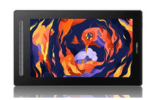
For most beginners, the upgrade path from a Star series or Deco series pen tablet leads naturally to either a larger pen tablet like the Deco 01 V3 or a first pen display like the Artist 13 2nd Gen. The pen display upgrade is the more transformative of the two because it changes the fundamental drawing experience — you draw on what you see, which eliminates the hand-eye disconnect of pen tablet use and significantly speeds up detailed, precise work.
10. Who Is Learning Digital Art in India?
Digital art education in India has experienced remarkable growth, driven by the expansion of online education platforms, the increasing accessibility of affordable drawing hardware, and the growing recognition of creative careers in animation, game design, UI/UX, and content creation.
- You do not need any prior drawing experience to start digital art with a tablet — skills develop through consistent practice, starting with basic pressure control and line exercises.
- The XPPen Star G640 or Deco 640 at under Rs 4,000 provides everything a beginner needs for the first year of digital art development.
- Krita, MediBang Paint, and GIMP are professional-quality free drawing applications that work with all XPPen tablets and are ideal starting software for beginners.
- The most important early skill is pressure control — practise drawing lines with gradually varying pressure before attempting complex artwork.
- Upgrade to a pen display (Artist 13 2nd Gen) only when your pen tablet genuinely limits your workflow — for most beginners, this takes six months to two years of regular practice.
- Short daily practice sessions (30 to 45 minutes) produce faster skill development than occasional long sessions — consistency matters far more than session length.
11. Related Reading
12. Frequently Asked Questions
Which drawing tablet is best for beginners in India?
The XPPen Deco 640 and Star G640 are the best drawing tablets for beginners in India. Both offer 8192 pressure levels, a battery-free stylus, and easy plug-and-play setup at under Rs 3,700. For beginners who want a slightly larger working surface, the Star 03 V2 at Rs 4,499 offers a 10x6 inch area that is more comfortable for handwriting, annotation, and freehand sketching.
What is the best free software to use with a drawing tablet?
Krita is widely considered the best free drawing software for beginners using a drawing tablet. It offers a comprehensive set of brushes, layers, and painting tools that rival paid applications, and it has excellent pressure sensitivity support. Other strong free options include GIMP for photo editing and illustration, MediBang Paint for manga and comic art, and FireAlpaca for a simpler painting experience. All are compatible with XPPen tablets on Windows, macOS, and Linux.
Do I need to know how to draw before using a drawing tablet?
No. A drawing tablet is a tool, not a prerequisite skill assessment. Many people who start with little or no traditional drawing experience develop strong digital art skills through consistent practice. Starting with basic exercises — straight lines, circles, pressure control drills — builds the foundational muscle memory that transfers directly to more complex artwork over time.
How long does it take to get comfortable with a drawing tablet?
Most beginners find their tablet comfortable and intuitive within one to three weeks of regular practice. The primary adjustment is hand-eye coordination — drawing on the tablet while watching the result on a monitor requires a mental recalibration that most people find natural within a few sessions. Drawing directly on a pen display like the Artist 13 2nd Gen shortens this adjustment period significantly, as you draw on the screen itself.
Can I use a drawing tablet with a laptop?
Yes. XPPen drawing tablets connect to laptops via USB or USB-C, and the setup process is identical to a desktop. Some XPPen models also support wireless Bluetooth connection for a cable-free setup. Select models support Android devices directly via USB-C or OTG cable, making them usable with Android phones and tablets without any computer at all. Check the XPPen FAQ page for per-model Android compatibility details.
What are the best exercises for a beginner on a drawing tablet?
The most effective beginner exercises for drawing tablet skill development are: pressure control drills (drawing lines that gradually go from thin to thick), straight line practice at various angles and speeds, circle and ellipse exercises for hand steadiness, hatching and cross-hatching for shading control, and contour line drawing from simple reference images. These exercises build the muscle memory that translates into confident, expressive line work in finished artwork.
Is digital art easier or harder than traditional art?
Digital art has different challenges than traditional art rather than being simply easier or harder. The undo function, infinite layers, and ability to zoom in on fine details make certain aspects of digital art more forgiving. However, the absence of physical texture and the learning curve of both hardware and software can feel difficult at first. Most artists who practice both forms find that skills developed in either medium transfer well to the other, and that digital art becomes more intuitive quickly with consistent practice.
Do I need a powerful computer for digital art with a drawing tablet?
For beginner-level digital art in free applications like Krita or MediBang Paint, a standard modern computer or mid-range laptop is sufficient. As your artwork becomes more complex — larger canvas sizes, more layers, higher resolution files — a more powerful computer with more RAM and a dedicated GPU will improve performance. For most Indian students and hobbyists starting out, their existing computer is adequate for the first year or two of digital art practice.


