






How to Use a Pen Tablet for Online Teaching in India
- A pen tablet transforms online teaching in India by enabling natural handwriting annotation, diagram drawing, and equation writing directly on screen during live classes.
- The XPPen Star G640 (under Rs 3,200) and Deco Mini 7 (under Rs 4,500) are the best value pen tablets for Indian online educators in 2026.
- Setup takes under ten minutes: install the driver, connect the tablet, and use any screen-sharing platform to annotate a whiteboard application in Zoom or Google Meet.
- Microsoft Whiteboard, Google Jamboard, and Notability are the three most effective whiteboard applications for Indian teachers using pen tablets.
- Pen tablets are preferred over pen displays for teaching because they are cheaper, lighter, and require no additional display cables.
- No powerful computer is needed: any laptop capable of running Zoom or Google Meet is sufficient to drive a pen tablet teaching setup.
- Why Indian Online Teachers Need a Pen Tablet
- How a Pen Tablet Works for Online Teaching
- Best Pen Tablets for Indian Online Educators: Compared
- Complete Setup Guide: Pen Tablet for Zoom and Google Meet
- Best Whiteboard Apps for Indian Online Teachers
- Subject-Specific Workflows: Maths, Science, Art, Languages
- Common Teaching Tablet Problems and How to Fix Them
- Tips to Improve Your Online Teaching Quality
- Advanced Setup: Multi-Screen and Annotation Recording
- Who Uses Pen Tablets for Teaching in India?
- Related Reading
- Frequently Asked Questions
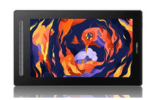
Online teaching in India has grown enormously since 2020, and with it, the demand for tools that allow educators to replicate the experience of a physical whiteboard in a digital classroom. A pen tablet is the most practical and cost-effective way to achieve this. Instead of typing text on slides or gesturing at a static screen, a teacher with a pen tablet can write equations, draw diagrams, annotate student work, and sketch explanations exactly as they would on a classroom blackboard, with the entire class seeing the work appear in real time on their screens. Browse the XPPen online teaching collection to see the tablets recommended specifically for educators before reading this complete setup guide.
This guide is written specifically for Indian educators: school teachers, private tutors, college lecturers, and ed-tech content creators who teach on Zoom, Google Meet, Microsoft Teams, or live streaming platforms. It covers not just the hardware recommendations but the complete workflow from unboxing to live class annotation. The XP-Pen India team has worked with educators across every subject area, and this guide reflects the practical questions and challenges that Indian teachers actually encounter.
Last reviewed: May 2026
1. Why Indian Online Teachers Need a Pen Tablet
The central problem with online teaching on a standard laptop is that the tools available for visual explanation are limited to static slides, screen annotations made with a mouse (which are notoriously imprecise), or physical whiteboards that require a camera facing away from the teacher's main screen. None of these replicate the fluency of chalk on a blackboard or marker on a whiteboard, which is the physical medium through which most Indian educators have built their teaching practice.
A pen tablet solves this by putting a natural drawing surface on the teacher's desk. The teacher looks at the monitor while writing with the stylus on the tablet, and everything they write appears on the shared screen exactly as handwriting would. Equations flow naturally. Diagrams build up incrementally. Student questions can be answered with a quick sketch rather than a laboured typed explanation.
Ed-tech context: According to India Brand Equity Foundation (IBEF), India's ed-tech market was projected to reach USD 10.4 billion by 2025, making it one of the world's largest. Within this market, the demand for tools that improve live teaching engagement, including digital whiteboards and pen tablets, has grown significantly as educators seek to reduce the engagement gap between physical and virtual classrooms.
2. How a Pen Tablet Works for Online Teaching
When you connect a pen tablet to your computer and open a whiteboard application, the stylus replaces the mouse for all drawing and writing input. The tablet surface maps to your screen: wherever you place the pen on the tablet, the cursor moves to the corresponding position on screen. When you press the pen tip down and move it, the cursor leaves a mark in whatever drawing application is active, exactly as ink flows from a pen on paper.
In an online class, you share the whiteboard application window through Zoom, Google Meet, or Teams. Students see the whiteboard in real time as you write on it. There is no lag perceptible to students; the teaching experience from their perspective is essentially identical to watching a teacher write on a physical board, except they are watching on their own screen with the option to zoom in for better visibility.
Use a dark background in your whiteboard application when teaching online. Dark mode (dark background with light text) reduces eye strain for students viewing screens in dimly lit rooms, which is common during evening online classes across India. Microsoft Whiteboard supports dark mode; Google Jamboard uses a white background by default but can be customised with coloured backgrounds for better contrast.
3. Best Pen Tablets for Indian Online Educators: Compared
| Model | Active Area | Pressure | Express Keys | Android Support | Current Listed Price | Teaching Verdict |
| Star G430S | 4 x 3 inch | 8,192 | No | No | Rs 1,899 | Basic annotation and digital signatures only. Not ideal for long teaching sessions |
| Star G640 | 6 x 4 inch | 8,192 | No | No | Rs 2,499 | Best budget option for general online teaching |
| Deco Fun Small | 6.3 x 4 inch | 8,192 | No | Yes | Rs 2,799 | Good for teachers who want Android support and a compact teaching tablet |
| Deco Mini 7 V2 | 7 x 4.37 inch | 16,384 | 8 keys | Yes | Rs 3,399 | Best compact option for maths, science, diagrams and regular online classes |
| Deco 01 V3 | 10 x 6.25 inch | 16,384 | 8 keys | Yes | Rs 6,299 | Best for teachers who want a large writing area and also create digital art or content |
4. Complete Setup Guide: Pen Tablet for Zoom and Google Meet
Step 1: Install the Driver
Download the latest XPPen driver from XPPen India support before connecting the tablet. Run the installer, follow the on-screen prompts, and restart your computer. Do not connect the tablet until the restart is complete.
Step 2: Connect the Tablet and Verify
Connect the tablet via USB. The driver icon will appear in the system tray on Windows or the menu bar on macOS. Open the driver application and hover the stylus over the tablet surface. The cursor should move on screen. Press lightly and firmly to confirm pressure response.
Step 3: Open Your Whiteboard Application
Open Microsoft Whiteboard, Google Jamboard, or any other annotation app. Write your name or a test equation using the stylus. Confirm the writing appears naturally and the ink follows the pen smoothly.
Step 4: Set Up Your Video Call
Open Zoom or Google Meet. Start your meeting. On Zoom, click Share Screen and choose your whiteboard application window (not the whole desktop). On Google Meet, click the Present Now button and select Window, then choose the whiteboard application. Students will now see only the whiteboard, giving a clean, focused view of your teaching content.
Step 5: Configure for Your Teaching Style
In the whiteboard app, set pen colour to white or yellow on a dark background. Use a pen thickness that is legible at the zoom level students use on their devices. In India, many students view online classes on smartphones with smaller screens, so use thicker strokes than you would on a full-size whiteboard to maintain readability.
5. Best Whiteboard Apps for Indian Online Teachers
Microsoft Whiteboard
Free with any Microsoft account and available on Windows, macOS, and browsers. Supports pressure sensitivity through Windows Ink, which works natively with XPPen tablets. Offers sticky notes, image insertion, and text boxes alongside freehand drawing. Integrates with Microsoft Teams for educators using the Teams platform.
Google Jamboard
Free with any Google account and integrates directly with Google Meet. Accessible on any browser and on Android and iOS apps. Supports freehand drawing with the stylus, sticky notes, and image insertion. Particularly practical for Indian teachers whose students use Google Classroom, as Jamboard files are stored and shared through Google Drive.
OpenBoard
A free, open-source interactive whiteboard application specifically designed for classroom teaching. It supports multiple pages, PDF annotation, YouTube video embedding, and a scientific calculator overlay. Works on Windows, macOS, and Linux, and is popular among Indian mathematics and physics teachers for its built-in geometric tools and graph overlays.
Equip Your Online Classroom with the Right Tablet
XPPen India offers a dedicated collection of pen tablets specifically chosen for online teachers, with competitive pricing and India warranty coverage.
Shop Online Teaching Tablets6. Subject-Specific Workflows: Maths, Science, Art, Languages
Mathematics and Physics
Write equations directly in LaTeX-aware apps like Overleaf displayed through a browser window, or use the handwriting recognition in Microsoft OneNote to convert handwritten equations to formatted text. For geometry, OpenBoard's built-in compass and protractor tools pair well with a stylus for accurate construction diagrams. Assign the undo shortcut (Ctrl+Z) to an express key for quick correction of calculation errors during live sessions.
Science and Biology
Diagram drawing is where the pen tablet delivers its highest value for science teachers. A cell diagram, a circuit schematic, or a chemical reaction sequence drawn in real time by a teacher as they explain is significantly more engaging and pedagogically effective than a static slide. Use the pressure sensitivity to vary line weight: thick lines for cell membranes, thin lines for internal organelle details.
Art and Design
For art teachers using Krita or Photoshop in their online demonstrations, the pen tablet is the natural teaching tool. Screen share the application and demonstrate brush techniques, colour mixing, and compositional principles directly on screen. Students can observe technique in a way that screenshots and video clips cannot replicate, since they see the teacher's drawing process in real time with its natural rhythm and decision-making pauses.
Languages and Script Writing
Indian language teachers who teach scripts such as Devanagari, Tamil, Telugu, or Bengali find the pen tablet particularly effective for demonstrating stroke order and proportions of letters. Students can see the sequence of pen movements that produce each character, which is not communicable through typed text or static images. This use case is an area where the pen tablet delivers unique pedagogical value.
7. Common Teaching Tablet Problems and How to Fix Them
Cursor Jumps When Writing
A jumping cursor during writing is usually caused by the palm resting on the tablet active area and being interpreted as input. Most XPPen drivers include a palm rejection setting under tablet settings. Enable palm rejection and set the sensitivity to medium. Alternatively, use an XPPen drawing glove, which prevents the palm from touching the active surface.
Handwriting Appears Jagged in the Whiteboard App
Jagged handwriting in whiteboard apps is usually a stabilisation issue. In the whiteboard app's pen settings, look for a smoothing or stabilisation option and increase it slightly. In the XPPen driver, also check that the pressure curve is not set too sensitively at the light end, which can cause micro-tremors to register as distinct ink dots.
Students Cannot See the Writing Clearly
If students report difficulty reading whiteboard content, increase pen stroke thickness in the app's pen settings and switch to high-contrast colour combinations: white or yellow on dark backgrounds, or black on white for apps without dark mode. Ensure your screen sharing resolution is set to the highest available option in Zoom or Google Meet's sharing settings.
In India, internet bandwidth varies significantly between students. When teaching to a mixed-bandwidth audience, avoid full-screen high-resolution screen sharing that consumes more bandwidth than necessary. Share only the whiteboard application window (not the full desktop) to reduce the data rate of the shared video stream, improving the experience for students on slower connections.
8. Tips to Improve Your Online Teaching Quality
Prepare a Template Whiteboard for Each Lesson
Instead of starting with a blank whiteboard for each class, prepare a template with pre-drawn section headers, a title area, and any framework diagrams. This saves five to ten minutes per class and makes the session feel more structured from the first moment. Save templates as whiteboard files and open them at the start of each class.
Use Colour Coding Consistently
Establish a colour coding system that students learn and expect: blue for definitions, red for important warnings or errors, green for examples, and black for standard working. Consistent colour usage in whiteboard annotation helps students organise their notes and review material after class.
Record Your Sessions for Revision
Zoom and Google Meet both support session recording. When you record a session where you are annotating on a whiteboard with a pen tablet, the recording captures your entire teaching process including the handwriting animation as it was drawn. These recordings are more useful for student revision than static notes or slide PDFs because they preserve the explanatory context of each mark.
9. Advanced Setup: Multi-Screen and Annotation Recording
Two-Monitor Teaching Setup
The most productive online teaching setup for Indian educators with a desk computer or a laptop with an external monitor uses two screens: the whiteboard or shared content on one screen, and the student video grid and class controls on the other. With this setup, you can see student reactions and chat messages while writing on the whiteboard without switching applications. The XPPen driver maps the tablet active area to whichever monitor you assign in the driver settings.
OBS for Advanced Recording and Streaming
For educators who create recorded content for YouTube, ed-tech platforms, or their own school's LMS, OBS Studio (free, open-source) allows combining the whiteboard screen with a camera feed (showing the teacher's face) in a single recorded output. Set up a scene in OBS with the whiteboard window as the primary source and a small picture-in-picture webcam overlay. This produces professional-looking recorded lessons equivalent to the production standard of commercial ed-tech platforms.
PDF Annotation for Exam Correction
Beyond live teaching, pen tablets are valuable for correcting student PDFs, digitally signing documents, and annotating student assignments. Open the student's PDF in Acrobat, Foxit, or PDF-XChange, use the stylus to annotate directly on the PDF, and return the marked-up version to the student. This is significantly faster and more legible than typing feedback in comment boxes.
10. Who Uses Pen Tablets for Teaching in India?
- A pen tablet enables natural whiteboard-style teaching in Zoom, Google Meet, and Teams, replicating the chalk-on-blackboard experience for online classes.
- The XPPen Star G640 (under Rs 3,200) is the best-value teaching tablet in India; the Deco Mini 7 (under Rs 4,500) is the upgrade choice for diagram-heavy subjects.
- Setup takes under ten minutes: install the driver, connect the tablet, and share a whiteboard application window in your video call.
- Microsoft Whiteboard, Google Jamboard, and OpenBoard are the three most practical free whiteboard applications for Indian online teachers.
- Use thick strokes in high-contrast colours (white or yellow on dark background) to ensure legibility for students viewing on smartphones.
- Recording sessions annotated with a pen tablet produces revision materials that capture the full teaching process, far more useful than static PDFs.
11. Related Reading
12. Frequently Asked Questions
Which pen tablet is best for online teaching in India in 2026?
The XPPen Star G640 at under Rs 3,200 is ideal for teachers who primarily annotate slides and write on whiteboards in Zoom or Google Meet. The Deco Mini 7 at under Rs 4,500 is the better choice for science and maths teachers who draw diagrams and equations with varying line weights, thanks to its larger active area and tilt recognition.
How do I set up a pen tablet for annotation in Zoom in India?
Install the XPPen driver from XPPen India support, connect the tablet, and open Zoom. Start a meeting and share the window of a whiteboard application like Microsoft Whiteboard or Google Jamboard. The stylus will control the annotation cursor. Using a dedicated whiteboard app rather than Zoom's built-in annotation gives much better drawing performance and more tool options.
Can I use a pen tablet to write equations on screen for maths teaching in India?
Yes. Open Microsoft OneNote, Notability (macOS), or OpenBoard, connect your XPPen tablet, and write equations naturally using the stylus. Students see the handwriting in real time when you share your screen. OpenBoard also includes built-in geometric and mathematical tools that pair well with a stylus for geometry and calculus teaching.
What whiteboard apps work best with pen tablets for Indian online teachers?
The most effective free whiteboard applications for Indian online teachers are Microsoft Whiteboard (integrates with Teams), Google Jamboard (integrates with Meet), and OpenBoard (best for maths and science with built-in tools). All support pen pressure input when used with an XPPen tablet and the driver correctly installed.
Is a pen tablet better than a drawing tablet with a screen for online teaching in India?
For most online teaching use cases, a pen tablet (without screen) is the more practical choice. It is lighter, more affordable, requires no additional display cables, and sits flat on any desk surface. A pen display adds cost without a meaningful benefit for whiteboard annotation, since the teacher's face and voice are the primary communication tools in online teaching.
Can I use a pen tablet for teaching on Google Meet in India?
Yes. Share your screen in Google Meet showing Google Jamboard or another whiteboard application, and use the pen tablet stylus to write and draw in that application. Google Jamboard integrates directly with Google Meet and is a popular choice among Indian teachers using Google Workspace for Education.
Do I need a powerful computer to use a pen tablet for online teaching in India?
No. Any laptop capable of running Zoom or Google Meet smoothly (typically 4GB RAM minimum) is sufficient to simultaneously run a whiteboard application and share the screen with an XPPen tablet. Even older laptops running Windows 10 handle this workflow without performance issues.


