






Drawing Tablet for Online Teaching: Complete India Guide
- Best tablet for teachers: The XPPen Deco 01 V3 (Rs 6,499) and Star 03 V2 (Rs 4,499) are the most popular drawing tablets among Indian online educators.
- Works with all platforms: XPPen tablets integrate seamlessly with Zoom, Google Meet, Microsoft Teams, and all major online teaching and whiteboard platforms.
- No special software needed: Zoom's built-in whiteboard, FigJam, Miro, Lucidspark, Zoom Whiteboard, Microsoft Whiteboard, OpenBoard, and Microsoft Whiteboard all accept pen input from XPPen tablets with no additional setup.
- Android compatible: Selected XPPen models work directly with Android devices via USB-C or OTG, enabling teaching from a phone or tablet without a laptop.
- Pen tablet over pen display: For teaching-only use cases, a pen tablet delivers equivalent annotation capability at a significantly lower cost than a pen display.
- EMI available: XPPen tablets are available on EMI from Rs 999 per month, making them accessible for individual tutors and school educators in India.
- 1. Why Online Teachers Need a Drawing Tablet
- 2. How Drawing Tablets Work for Online Teaching
- 3. Best XPPen Tablets for Online Teaching in India
- 4. Whiteboard and Annotation Software for Online Classes
- 5. Setting Up Your XPPen Tablet for Zoom and Google Meet
- 6. Teaching Techniques That Work Better with a Tablet
- 7. Common Setup Mistakes and How to Fix Them
- 8. Tips for a Professional Online Teaching Setup
- 9. Advanced Annotation and Teaching Workflows
- 10. Who Uses Drawing Tablets for Teaching in India?
- 11. Related Reading
- 12. Frequently Asked Questions
Online teaching in India has transformed dramatically over the past few years, with millions of educators now conducting live classes, tutoring sessions, and professional training entirely through digital platforms. The one hardware tool that makes the biggest practical difference in online teaching quality is a drawing tablet — and specifically, a well-chosen, properly configured drawing tablet that lets you write, diagram, and annotate as naturally on screen as you would on a physical blackboard. This guide is written for Indian educators who want to set up the most effective digital teaching environment possible.
At XPPen India, the online teaching and meetings collection is one of the most popular categories in the store. Teachers across India — from mathematics tutors to language instructors, from engineering professors to arts educators — have discovered that a Rs 4,499 to Rs 6,499 XPPen tablet transforms the quality and engagement of their online sessions. This guide covers which tablet to buy, how to set it up, which software to use, and how to integrate the tablet into teaching techniques that genuinely improve student outcomes.
Last reviewed: April 2026
1. Why Online Teachers Need a Drawing Tablet
The central limitation of online teaching compared to classroom teaching is the absence of a physical board. In a classroom, a teacher can turn to the blackboard at any moment and write an equation, draw a diagram, sketch a map, or illustrate a concept in real time. This spontaneous visual explanation is one of the most powerful pedagogical tools available — it shows students how a thinker works through a problem step by step, rather than presenting a pre-made answer.
A drawing tablet restores this capability to the online classroom. With a tablet and a whiteboard application open on your computer, you can write equations as you explain them, annotate a shared document or PDF in real time, sketch diagrams on a blank canvas, and correct or revise your work on screen just as you would rub out and rewrite on a physical board. Students watching your screen see your pen strokes appear as you create them, which is a fundamentally more engaging and instructive experience than a static slide presentation.
Teaching impact: Research published by education researchers at institutions including IIT Bombay's educational technology unit has documented that real-time visual explanation in online teaching significantly improves student comprehension scores compared to pre-recorded or static-slide delivery, particularly for subjects involving calculation, diagram interpretation, and step-by-step reasoning.
2. How Drawing Tablets Work for Online Teaching
For online teaching, a drawing tablet works as a replacement for the mouse as your primary input device during classes. You open a whiteboard application — this could be the built-in Zoom whiteboard, FigJam, Miro, Lucidspark, Zoom Whiteboard, Microsoft Whiteboard, OpenBoard, Microsoft Whiteboard, or a third-party tool — and share that window with your students through screen sharing. When you draw on your tablet with the stylus, your strokes appear on the shared screen in real time. Students see exactly what you write as you write it, at whatever speed you choose to present it.
The key advantage of a stylus over typing or mouse-drawing is naturalness. Writing with a stylus produces legible text and clean diagrams that feel organic and readable, unlike the stiff, imprecise marks most people produce with a mouse. Your handwriting on the tablet looks essentially the same as your handwriting on paper. Equations, circuit diagrams, geometric proofs, language script practice — all of these are dramatically easier to produce and communicate with a stylus than with any alternative input method.
Before your first class with the tablet, spend 15 minutes practicing writing on your whiteboard application at the speed and size you plan to teach. This gives you a sense of how the stylus responds and lets you adjust the pressure curve and screen mapping to match your natural writing style before students are watching.
3. Best XPPen Tablets for Online Teaching in India
| Tablet | Active Area | Price (India) | Android Support | Best Teaching Use |
|---|---|---|---|---|
| Star G640 | 6 x 4 inches | Rs 2,999 | No | Basic annotation, budget teaching setup |
| Star 03 V2 | 10 x 6 inches | Rs 4,499 | No | Mathematics, science, large diagrams |
| Deco 01 V3 | 10 x 6.27 inches | Rs 6,499 | Yes | All subjects, Android-compatible teaching |
| Star G960S Plus | 9 x 6 inches | Rs 5,999 | Yes (Android 6.0+) | Mobile-first teaching without a laptop |
| Deco Pro S / M | Various | Rs 7,499+ | No | Professional educators with wireless setup needs |
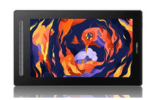
For the majority of Indian online teachers, the Deco 01 V3 is the most practical choice. Its 10x6.27 inch active area provides enough space to write at a comfortable size, it includes a scratch guard that protects the surface during regular use, and the Android support gives you the option to conduct classes from a phone or tablet when your laptop is unavailable. The Star 03 V2 is the budget-conscious alternative with a similarly large working area and excellent compatibility with all teaching software.
4. Whiteboard and Annotation Software for Online Classes
Built-in Platform Tools
Every major video conferencing platform includes basic whiteboard and annotation tools that work immediately with an XPPen tablet. Zoom's whiteboard feature provides a blank canvas with text, pen, shapes, and highlighter tools that all respond to stylus pressure. Google Meet integrates with Jamboard for a full-featured whiteboard experience that saves automatically to Google Drive. Microsoft Teams includes a Whiteboard app built around the Microsoft Whiteboard platform, which supports rich pen input with palm rejection and multiple brush types.
Dedicated Whiteboard Applications
For teachers who want more capability than built-in platform tools offer, dedicated whiteboard applications provide significantly more power. Miro is the most feature-rich option, with unlimited boards, PDF annotation, embedded media, sticky notes, and templates designed for educational use. OpenBoard is a free, open-source classroom software used by educators worldwide, with support for importing presentation slides and annotating them in real time. Microsoft Whiteboard (standalone application) provides a more capable canvas than the Teams integration alone.
PDF and Document Annotation
Many teachers share PDF worksheets, textbook pages, or prepared notes with students and annotate them live. Adobe Acrobat, Foxit PDF Reader, and Drawboard PDF all accept stylus input and allow you to write directly on PDF documents. This workflow is particularly effective for mathematics and language teaching, where annotating pre-prepared problems or passages creates a focused, structured lesson format.
Transform Your Online Classes with XPPen
XPPen drawing tablets for online teaching start at Rs 4,499. Free pan-India delivery, 12-month warranty, and EMI from Rs 999 per month. Trusted by thousands of Indian educators.
Shop Teaching Tablets5. Setting Up Your XPPen Tablet for Zoom and Google Meet
Initial Setup
Install the XPPen driver for your specific tablet model from the official support site. Restart your computer, connect the tablet via USB, and open the XPPen driver panel. The tablet is now ready to use as a pen input device in any application on your computer.
Configuring for Teaching
In the driver panel, configure the shortcut keys on your tablet for your most-used teaching functions. Recommended assignments for teaching use: Button 1 for Undo (Ctrl+Z), Button 2 for Erase or Switch to Eraser tool, Button 3 for a new page or slide, Button 4 for increase brush size, Button 5 for decrease brush size. This setup lets you correct mistakes, change tools, and navigate between pages without picking up the keyboard during your class.
Setting Up Screen Mapping for Teaching
For online teaching, you typically want your tablet's active area to map to the specific window or monitor showing your whiteboard application, rather than your full desktop. In the XPPen driver's screen mapping settings, you can restrict the active area to a single application window. This means your pen movements map precisely to the whiteboard, making your writing more natural and proportional to the canvas size.
Before each class, open your whiteboard application, go full screen, and do a 60-second practice run of writing your name and drawing a simple diagram. This calibrates your hand to the current setup and catches any driver issues before students join. Five minutes of preparation prevents technical problems that disrupt class flow.
6. Teaching Techniques That Work Better with a Tablet
Live Problem Solving
For mathematics, physics, and engineering subjects, the most powerful use of a drawing tablet is live problem solving on a shared whiteboard. Rather than showing students a pre-solved example, you work through the calculation or proof step by step in real time, making the reasoning process visible. This technique, supported by educational research on worked examples published in cognitive science journals, is one of the most effective ways to build student problem-solving ability.
Real-Time Diagram and Concept Mapping
Science, history, economics, and language teachers benefit from building diagrams and concept maps live during explanation rather than showing pre-built slides. Drawing the water cycle while explaining it, sketching a timeline as you narrate historical events, or creating a mind map of vocabulary relationships as students contribute ideas — all of these activities are only practical with a drawing tablet. A mouse makes this kind of freehand, spontaneous visual explanation unusable; a stylus makes it natural and fluent.
Annotation of Student Work
Teachers who use online submission platforms can annotate student work during live feedback sessions using their drawing tablet. Marking up a student's essay, drawing corrections on a math submission, or highlighting specific elements of a design for discussion — all of these are vastly more effective with stylus annotation than with typed comments.
Check your class recording settings when using a whiteboard. Most platforms record screen share content alongside video, meaning your whiteboard drawings are captured in the recording. This creates excellent revision material for students. Some whiteboard applications also allow you to export the session as a PDF or image for distribution after class.
7. Common Setup Mistakes and How to Fix Them
Not Installing the Correct Driver
The most common setup problem is using a generic Windows tablet driver or the wrong model's driver instead of the specific XPPen driver for your tablet. Generic drivers do not enable pressure sensitivity and may cause erratic cursor behaviour. Always download the driver from the official XPPen support page, selecting your exact model. The XPPen India FAQ has driver installation guidance for all current models.
Pen Acting as a Mouse Instead of a Drawing Tool
If your stylus moves the cursor but does not draw in your whiteboard application, the application may not have pen input enabled. Check the application's settings for a "pen" or "stylus" mode — many whiteboard apps default to a selection or pointer tool rather than the pen tool. Switching to the pen tool (usually via a toolbar icon or keyboard shortcut) enables drawing. In Zoom's whiteboard, select the "Draw" tool from the toolbar before attempting to write.
Writing Appearing Too Small or Too Large
If your writing appears very small on the shared screen, your screen mapping area is likely too large relative to your whiteboard canvas. Try reducing the tablet's active area in the driver to match the dimensions of your whiteboard window more closely. Alternatively, zoom your whiteboard canvas to 150% or 200% before teaching — this makes your pen strokes produce larger marks on the shared screen. Adjusting canvas zoom is often the faster fix during a live session.
8. Tips for a Professional Online Teaching Setup
Beyond the drawing tablet, a professional online teaching setup benefits from a few additional considerations. Good lighting — a simple ring light positioned in front of you — ensures your face is clearly visible to students and communicates engagement and professionalism. A consistent, uncluttered background (physical or virtual) reduces distractions. A dedicated headset with a boom microphone delivers significantly clearer audio than laptop microphones, which pick up ambient room noise and keyboard sounds.
For teachers who conduct long daily sessions, an ergonomic tablet position matters. Place the tablet flat on the desk in front of you, or at a slight angle on a prop, at a position where you can write comfortably without excessive wrist or shoulder strain. Some teachers prefer to have the tablet to one side and their keyboard to the other, switching between writing and typing as needed. Experiment with positioning during practice sessions to find what is most comfortable for your body and workflow.
Desk setup recommendation: Many Indian online educators who teach for 4 to 6 hours per day report that placing the drawing tablet on a slightly elevated surface, with the writing surface at approximately keyboard height or slightly below, produces the most comfortable long-session posture and reduces wrist fatigue during writing-intensive classes.
9. Advanced Annotation and Teaching Workflows
Preparing Lesson Templates
Create reusable whiteboard templates in your whiteboard application with your school's branding, a grid or ruled background for your subject, and pre-drawn frameworks (number lines for mathematics, periodic table outlines for chemistry, staff lines for music). Starting each lesson with a prepared template rather than a blank canvas saves time and creates a more professional, structured visual environment for students.
Combining Slides with Live Annotation
Many experienced online teachers use a hybrid workflow: prepare your core content in presentation software (PowerPoint, Google Slides, or Keynote), display the slides during class, and use your drawing tablet to annotate on top of the slides in real time. Zoom, Teams, and Google Meet all support annotating over a shared screen. This combines the structure of prepared slides with the flexibility of live annotation, which many teachers find the most effective format for complex subjects.
Student Interaction with the Whiteboard
Advanced whiteboard platforms like Miro allow students to draw or write on the whiteboard simultaneously, creating collaborative visual exercises. Activities like having students label diagrams, solve problems on a shared board, or contribute to a class mind map become possible when both teacher and students have drawing input available. While students can use a mouse for this, students who have their own drawing tablets (such as XPPen's entry-level models) participate more naturally and produce more readable contributions.
10. Who Uses Drawing Tablets for Teaching in India?
Drawing tablets for online teaching have been adopted across virtually every subject and educational level in India, from primary school tutors to IIT entrance coaching institutes. The diversity of use cases reflects how universally applicable real-time visual explanation is across all teaching contexts.
- A drawing tablet restores real-time visual explanation to online teaching, enabling the same spontaneous diagrams, equations, and annotations that make classroom teaching effective.
- The XPPen Deco 01 V3 and Star 03 V2 are the most recommended tablets for Indian online educators, balancing active area, price, and feature set for teaching workflows.
- No special software is required — Zoom's whiteboard, FigJam, Miro, Lucidspark, Zoom Whiteboard, Microsoft Whiteboard, OpenBoard and Microsoft Whiteboard all accept pen input from XPPen tablets immediately on connection.
- Configure your tablet's shortcut keys for undo, eraser, and page navigation before your first class — these three shortcuts significantly improve live teaching flow.
- For teaching-only use, a pen tablet is more practical and cost-effective than a pen display — the annotation quality is equivalent and the setup is simpler.
- EMI options from Rs 999 per month make XPPen teaching tablets accessible for individual tutors, coaching institutes, and school educators across India.
11. Related Reading
12. Frequently Asked Questions
Which XPPen tablet is best for online teaching in India?
The XPPen Deco 01 V3 and Star 03 V2 are the most popular and recommended XPPen tablets for online teaching in India. The Deco 01 V3 at Rs 6,499 offers a 10x6.27 inch active area, Android support, and included accessories. The Star 03 V2 at Rs 4,499 provides a large 10x6 inch working area with 8 shortcut keys at a lower price point. Both work seamlessly with Zoom, Google Meet, Microsoft Teams, and all major whiteboard applications.
Do I need a special app to write on screen during online classes?
No. Most online teaching platforms already include annotation tools. Zoom has a built-in whiteboard and annotation feature. Google Meet integrates with Jamboard. Microsoft Teams includes a whiteboard app. Additionally, free applications like OpenBoard and Microsoft Whiteboard work as standalone digital whiteboards that can be shared via screen sharing. Your XPPen tablet works as a natural pen input for all of these without any additional configuration.
Can I use a drawing tablet without a laptop for online teaching?
Some XPPen tablets support Android devices directly via USB-C or OTG connection. The Deco 01 V3 and Star G960S Plus both support Android. However, for full online teaching functionality including video conferencing and screen sharing, a laptop or desktop computer is the more capable and recommended setup for most teachers.
How do I set up my XPPen tablet for Zoom teaching sessions?
Install the XPPen driver and connect your tablet. Open your whiteboard or annotation application. In Zoom, start your session and use the Share Screen option to share the whiteboard window. Use your XPPen stylus to write and draw naturally. Configure the tablet's shortcut keys for undo, pen colour change, and eraser to speed up your annotation workflow. Your writing will appear on students' screens in real time as you draw.
Does a drawing tablet improve student engagement in online classes?
Yes, consistently. Research on online education effectiveness shows that visual explanation significantly improves student comprehension and engagement compared to static slides alone. A drawing tablet allows teachers to create visual explanations spontaneously and naturally during a live session, much as a classroom teacher writes on a blackboard. The natural pen input makes explanations feel more dynamic and responsive to the class's needs in real time.
Is a drawing tablet useful for mathematics and science teaching?
Extremely so. Mathematics, physics, chemistry, and engineering subjects involve equations, diagrams, graphs, and worked calculations that are very difficult to communicate effectively through text or static images alone. A drawing tablet allows teachers to write equations step by step, draw circuit diagrams or molecular structures, and annotate graphs in real time. Many Indian mathematics and science tutors report the tablet as their single most impactful online teaching tool.
What whiteboard software works best with XPPen tablets for teaching?
The best whiteboard applications for online teaching with XPPen tablets are: Zoom Whiteboard (built-in), Microsoft Whiteboard (free, integrates with Teams), Jamboard (free, integrates with Google Meet), Miro (professional, excellent for structured lessons), and OpenBoard (free, open-source, excellent for academic teaching). All are fully compatible with XPPen tablets on Windows and macOS. Visit the XPPen India FAQ for additional software compatibility information.
Should online teachers buy a pen display or a pen tablet?
For online teaching specifically, a pen tablet is the more practical and cost-effective choice. Teachers primarily need to write, annotate, and diagram on a shared screen — tasks that a pen tablet performs equally well as a pen display at a fraction of the cost. The XPPen Star 03 V2 or Deco 01 V3 are the most sensible investments for educators whose primary use is online teaching rather than professional digital art creation.


